LinkedIn sent invitations: where each one goes
Anna SheronovaUpdated
Your LinkedIn sent invitations sit on the Sent tab of Manage invitations, the connection requests still waiting for an answer. On desktop, open My Network, then Invitations, then Sent. In the app, tap My Network, Invitations, Sent. As of October 2026, accepted, withdrawn and expired invitations drop off the list, and LinkedIn keeps no record of which happened.
- until an unanswered invitation expires
- 6 months
- before you can invite someone again after withdrawing
- Up to 3 weeks
- to download your data archive once it is ready
- 72 hours
Seeing the past means reading LinkedIn's archive file or keeping your own record.
Where to find sent invitations on LinkedIn
On desktop, LinkedIn Help gives this path as of October 2026:
Open My Network
Click the My Network icon at the top of your homepage.
Open your invitations
In Invitations, click Show all. If you have no pending invitations received, click Manage next to "No pending invitations".
Switch to Sent
Click the Sent tab under Manage invitations.
In the app, tap My Network, tap Invitations, then tap the Sent tab.
Sent invitations
Illustration · example data- MLMaya LindqvistProduct designer, health techWaiting for a responsePendingWithdraw
- JFJonas FerreiraFounder, B2B analytics studioWaiting for a responsePendingWithdraw
- RARuth AdeyemiCareer coach for engineersWaiting for a responsePendingWithdraw
The tab beside it, Received, holds the requests other people sent you. Invitations people sent you have their own guide.
How to see pending invitations
Every row on the Sent tab is a pending invitation. LinkedIn Help describes the tab as the place to view the invitations you sent and withdraw the ones still waiting for a response.
An invitation leaves the tab when the person accepts it, when you withdraw it, or when it expires. If an answer matters to you, check the list first. Once a row is gone, the screen says nothing about it.
LinkedIn also caps how many invitations you can send in a week. The weekly invitation limit guide covers what LinkedIn says about it and how to count your own.
What happens to each invitation
A sent invitation is accepted, ignored, withdrawn or expires. Only pending ones stay on the Sent tab.
The life of a connection request
DiagramSent
You click Connect
Pending
Listed on your Sent tab
Accepted
Now a 1st-degree connection
Withdrawn
Recipient not told, can't be restored
Ignored
LinkedIn sends you no notice
Expired
Ends after six months
Accepted
Now a 1st-degree connection
Withdrawn
Recipient not told, can't be restored
Ignored
LinkedIn sends you no notice
Expired
Ends after six months
| Outcome | On your Sent tab | What you can tell | Invite again |
|---|---|---|---|
| Pending | ListedWaiting for a response | The row itself | Not needed, it is still open |
| Accepted | GoneThe person joins your connections | They are a 1st-degree connection | Not needed |
| Ignored | Not documentedLinkedIn does not say what it shows | No notice goes to the sender | LinkedIn does not say |
| Withdrawn | GoneCan't be restored | The recipient is not notified | After up to three weeks |
| Expired | GoneAfter six months | Up to two reminders went to them first | Yes, a new one |
Accepted invitations
An accepted invitation turns the person into a 1st-degree connection, and the row leaves your Sent tab. Their name shows 1st, and they appear in your Connections list. LinkedIn keeps no list that ties accepted people back to the invitations you sent. How to see who accepted goes through the places to check, starting with your full connections list. Each acceptance also adds to your total, and how your connection count grows over time shows how to chart that month by month.
Ignored invitations
An ignore is silent. LinkedIn does not notify the sender when someone ignores an invitation, and it does not document what your Sent tab shows afterwards. Either way, nothing on your side labels an invitation as ignored. What an ignored invitation looks like covers what you can and cannot tell.
Withdrawn invitations
You can withdraw an invitation any time before it is accepted. LinkedIn Help says: "The recipient will not be notified when you withdraw the invitation." A withdrawn invitation can't be restored, and you can't invite the same person again for up to three weeks. How to withdraw an invitation has the steps. If they already accepted, withdrawing is no longer an option, and you can remove a connection instead.
Expired invitations
An invitation nobody answers runs out by itself. "Invitations expire after six months," LinkedIn Help says, and LinkedIn sends the recipient up to two reminders before that. After that it no longer appears as pending, and you can send a new one. How long invitations last covers the reminders and sending again.
My invitation disappeared: what happened?
An invitation missing from your Sent tab was accepted, withdrawn, expired, or ended in a way LinkedIn does not name. A vanished row is no proof of a decline, since LinkedIn sends no notice when someone ignores you. Check in this order:
Still on the Sent tab
It is pending.
1st next to their name, or in your Connections list
They accepted. A Message button alone is not proof.
Connect is back
You withdrew it, it expired, or it ended another way. LinkedIn does not say which.
Sent less than six months ago, and you did not withdraw it
Expiry is ruled out, and LinkedIn does not show why it left.
You want to try again
After an expiry you can send a new invitation. After a withdrawal, LinkedIn makes you wait first.
How to keep a history of sent invitations
LinkedIn gives you one record of past invitations: the Invitations file in your data archive. LinkedIn describes it as the invitations you sent and received, with names, profile URL, date sent and message. Every file in the archive, and which request brings it, has its own guide. The short path:
Open settings
Click Me, then Settings & Privacy.
Find the download
Click Data Privacy on the left, then Download your data.
Request it
Pick the data you want and request it. A single category arrives by email within minutes, and the download stays available for 72 hours.
I opened Invitations.csv in my own archive in October 2026. Its columns were From, To, Sent At, Message, Direction, inviterProfileUrl and inviteeProfileUrl, and Direction marks each row OUTGOING or INCOMING. Accepted invitations were in it alongside pending ones, with no column for the outcome. Most of the people I had invited were also in my Connections.csv. The oldest row was just under six months old, so request the file soon if older invitations matter.
To mark which ones were accepted, match each OUTGOING row's inviteeProfileUrl to the URL column of Connections.csv, which comes with the larger archive. A match means they accepted, and Connected On gives the day. Rows with no match are still pending or ended some other way. The file does not say which. With the two files joined, you can work out your acceptance rate.
The other way is your own record from today: a sheet with the name, the date sent, a note, and the outcome you fill in when you check.
Keep a record of sent invitations and their outcomes
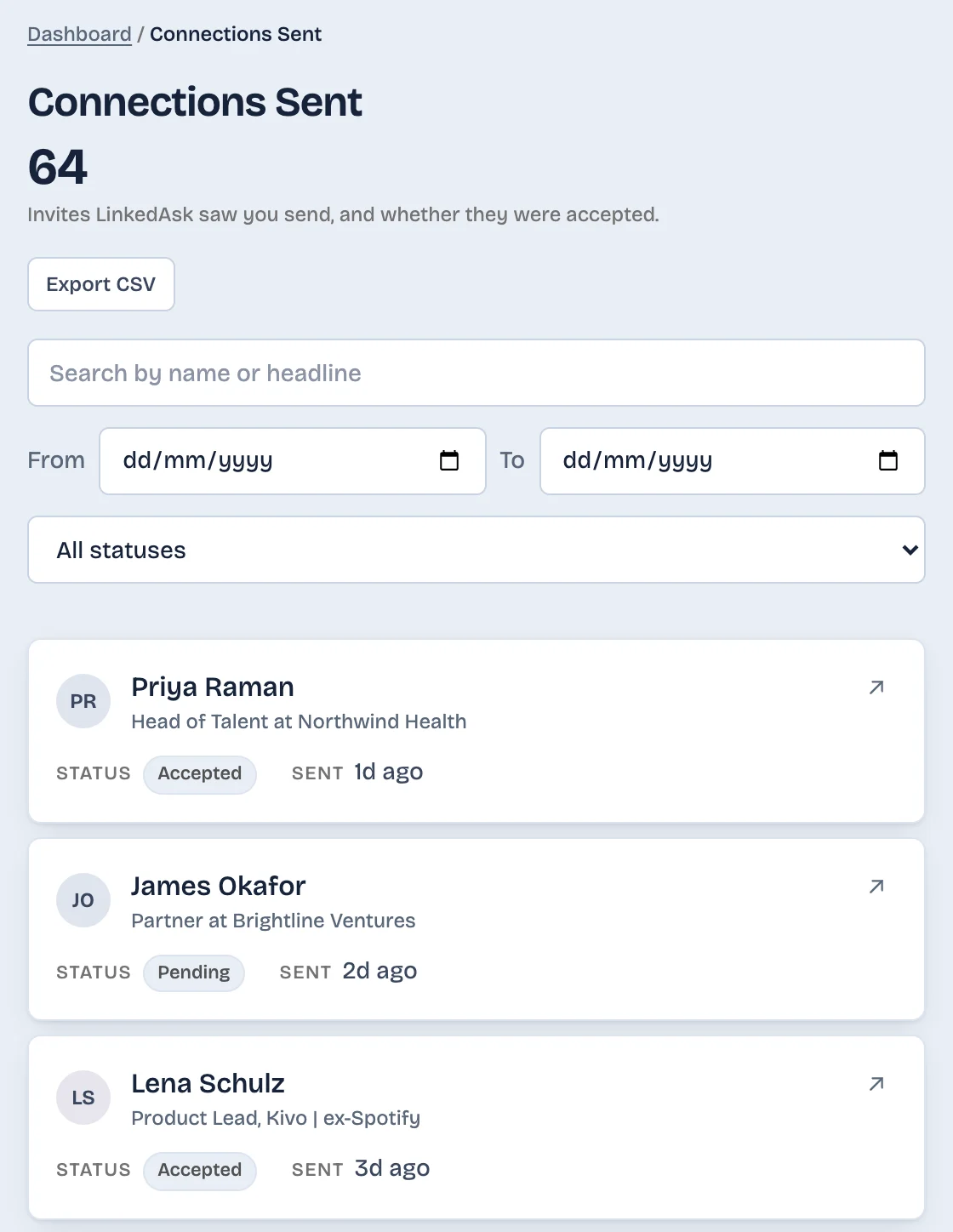
The archive gives you dates without outcomes, and a sheet holds only what you remember to type. LinkedAsk keeps a dated record of the invitations you send: it saves the invitations it sees you send on LinkedIn in desktop Chrome, with the date and whether the person accepted, so they stay after they leave your Sent tab.
What to do next
- You want to see who is still waiting: open the Sent tab now, a one-minute check.
- One invitation vanished: run the five checks above against their profile.
- You need the last few months: request the Invitations file and join it to Connections.csv in a spreadsheet.
- You want outcomes from now on: keep a sheet, or use a tool that records invitations as you send them.
Sent invitations: questions
Can I see sent invitations that were accepted?
Not on the Sent tab: an accepted invitation leaves it, and the person joins your connections. LinkedIn keeps no list tying accepted people to the invitations you sent. Your archive's Invitations file holds accepted invitations too, without an outcome column, so match it to Connections.csv to mark them. In my own archive it went back just under six months.
Why did my sent invitation disappear from the list?
It was accepted, you withdrew it, it expired, or it ended in a way LinkedIn does not show. LinkedIn does not notify you when someone ignores an invitation, so a vanished row is no proof of a decline. If 1st shows next to their name, or they appear in your Connections list, they accepted.
Does the LinkedIn data export include the invitations I sent?
Yes. The Invitations file lists invitations you sent and received, with names, profile URL, date sent and message. It has no column for what happened to each one, and it may not reach back further than a few months.
Where are sent invitations in the LinkedIn app?
Tap My Network, tap Invitations, then tap the Sent tab, as of October 2026. The Received tab beside it holds requests people sent you.
Keep reading
- Guide · 4 minHow to see all your LinkedIn connectionsYour LinkedIn connections list is under My Network, then Connections, as of October 2026. See how to search, sort and filter it, and why it looks short.
- Guide · 4 minLinkedIn connection growth over time, by monthLinkedIn shows only today's connection total. Rebuild your connection growth over time from the export's dates, month by month, and see why old months read low.
- Guide · 3 minWhere to find LinkedIn invitations you receivedInvitations you received on LinkedIn sit under My Network, Invitations, split into Focused and Other. Check both, and see how to fix a mistaken Ignore.
Keep the invitations you send.
Install the extension. Invitations it sees you send stay in your history with the date and whether they were accepted.