What's in LinkedIn's Connections.csv, and what isn't
LinkedIn puts your first-degree connections in one file with seven columns: First Name, Last Name, URL, Email Address, Company, Position and Connected On. Three lines sit above the header: a "Notes:" line, a paragraph about email addresses and a blank line. Excel opens them as junk rows and many import tools reject the file. This page skips them for you.
Company and Position show each person's job on the day you exported. Someone you met at Adyen in 2017 shows up under their 2026 employer.
Email Address is empty for most rows. LinkedIn fills it in only for people who turned on the setting that lets connections download their email, and that setting starts switched off.
The file has no location, industry, headline or photo. It also has no links between your connections, so no tool built on this export can show who knows whom. For the full list of files in the archive, see what you get in a LinkedIn data export.
How to read your LinkedIn network map
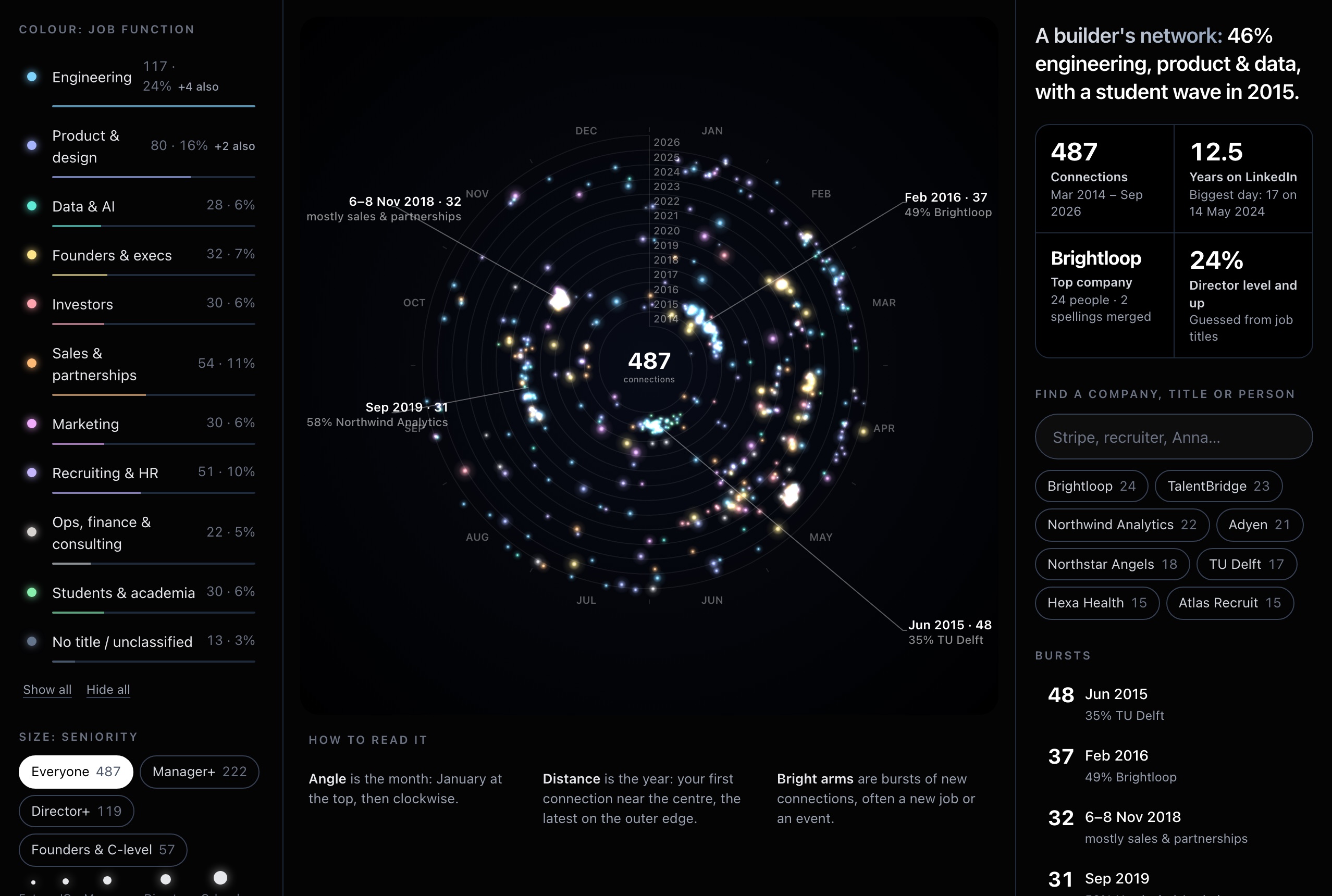
The map is a calendar spiral. Your first connection sits near the centre, and each ring outward adds a year. Angle is the month, with January at the top and the year running clockwise, so people you added in the same season line up along one spoke.
Each dot is one person. Colour shows their job function and size shows seniority. Click a colour in the legend to hide that group or show it on its own, or use the seniority chips to keep only managers, directors or C-level.
Bright arms are bursts: weeks where you added at least three times your usual number of people. The tool labels each burst with the company most of those people share. A new job, a graduation or a conference often leaves this mark, and you will know which one it was.
Search a company, title or name and the matching dots light up and join into one figure. You see at a glance when that group entered your network.
What the numbers mean
Connections counts the rows with a readable date. Years on LinkedIn runs from your earliest Connected On date to your latest. Biggest day is the single date with the most new connections, often an event or your first week at a new company.
Top company counts people by current employer after the tool merges spellings. "Microsoft Corporation" and "Microsoft", or "Brightloop B.V." and "Brightloop", count as one company, and the facts panel shows how many spellings it merged. Subsidiaries with different names stay separate.
Function and seniority come from keywords in the Position column, such as engineer, recruiter, founder, dietitian, director or intern, in English, Dutch, Russian, German, French and Spanish. They are guesses. Someone with two roles in one title, like "Founder & dietitian", gets a main group plus an "also" group. A title like "Making things happen at Acme" lands in Unclassified, and the legend shows the size of that group. Director level and up uses the same guesses, so treat it as an estimate.
Ways to use your network map
Job hunting: filter to the functions you want to work in and look for the bursts around past jobs. Those are the people who saw your work up close, and the cleaned CSV gives you their titles and the date you connected. Looking for names at specific companies? Use the company connections finder.
Selling: switch on Director and C-level, pick the functions you sell to, and export the result. The cleaned CSV keeps LinkedIn's columns, drops the Notes lines and adds Function and Seniority, so you can sort it in a spreadsheet or import it into a CRM.
Curious: the spiral shows your career in the order you lived it, one job and one conference at a time. Download the poster to share it. The poster keeps the dots, colours and years and leaves out every name.