Where to find LinkedIn invitations you received
Anna SheronovaUpdated
LinkedIn invitations you received wait on the invitations page. On desktop, open My Network and select Show all beside Invitations. In the app, tap My Network, then Invitations. As of October 2026, LinkedIn splits them into two views, Focused and Other, and it may not notify you about requests in Other, so check both.
- Focused and Other, on the same invitations page
- 2 views
- until an invitation you never answer expires
- 6 months
- reminders LinkedIn sends you before it expires
- Up to 2
This guide is about invitations people send you. For the ones you sent, see LinkedIn sent invitations.
Open your received invitations on desktop or in the app
LinkedIn Help's Invitations on LinkedIn page gives these paths (as of October 2026).
On desktop:
Open My Network
Select My Network at the top of LinkedIn.
Select Show all
Beside Invitations, select Show all. The page that opens is called Manage Invitations.
Pick a view
Choose Focused or Other to switch views.
In the LinkedIn app:
Tap My Network
Tap My Network.
Tap Invitations
Tap Invitations. LinkedIn calls this screen the Invitation Manager.
Pick a view
Select Focused or Other.
Received invitations
Illustration · example data- ESElena SokolovaRecruiter, climate startupsReceived yesterdayPendingIgnore
- MWMarcus WebbFreelance copywriterReceived 5 days agoPendingIgnore
- PRPriya RamanOperations manager, retailReceived 3 weeks agoPendingIgnore
A number on the My Network icon marks pending invitations you have received, so you can tell at a glance that something is waiting.
Check the Other view for missing invitations
LinkedIn sorts received invitations by how confident its systems are about the sender. Focused holds the ones it is more confident about, Other holds the rest, and you can accept, ignore or reply to any invitation from either view. The same Help page says:
"LinkedIn may not send notifications for invitations that appear in the Other view."
So if a recruiter or a client says they sent you a request and your notifications show nothing, open Other before asking them to send it again. If it is in neither view, the sender may have withdrawn the invitation, or it expired.
LinkedIn Help also describes a second route: the Notifications icon on desktop, or the Notifications tab in the app, with pending invitations near the top. Manage Invitations is the page that has both views, Focused and Other, which makes it the better place to look.
Read the note before you answer
Each invitation shows the sender with a View profile option, plus a personal note if they wrote one. Open the note in full and select Reply to [name] to answer it. According to LinkedIn Help's Accept, ignore, or report invitations page, replying does not accept the invitation, so you can ask what someone wants before you decide.
Open the profile or the note first. It takes a few seconds.
Accept, Ignore or leave it unanswered
A reply on its own neither accepts nor ignores a request.
| Your answer | What happens |
|---|---|
| Accept | ConnectedThe sender becomes one of your 1st-degree connections. |
| Reply to the note | Still waitingYour reply is sent. The invitation is not accepted. |
| Ignore | RemovedThe invitation is removed without connecting. The sender is not notified and may invite you again. |
| No answer | ExpiresThe invitation expires after six months. LinkedIn sends you up to two reminders before then. |
How LinkedIn invitations expire covers the six-month timing in more detail.
For the other side of the same moment, see what the sender sees after an ignored invitation.
Ignored an invitation by mistake
LinkedIn Help describes no way to restore an ignored invitation, and the invitations page lists pending invitations only, so there is no list of ignored requests to go back to (as of October 2026).
They were not notified of your Ignore, so open their profile and send your own invitation. A short note such as "Good to connect, I missed your request earlier" is enough.
If you also chose I don't know this person after ignoring, LinkedIn Help says that stops them sending you another invitation.
If you no longer remember who it was, search your email: if LinkedIn emailed you about the invitation, that message may still name them.
LinkedIn's own record: the data download
LinkedIn's data download includes an Invitations file. LinkedIn Help's Download your data page describes it as "Contains the invitations sent and received." It is the one record of past invitations that LinkedIn Help describes after a request leaves the invitations page.
Help does not say whether invitations you ignored appear in that file, so open it before relying on it. Our guide to the LinkedIn data export walks through the archive, including the Invitations file.
Keep a dated record of the connections you make
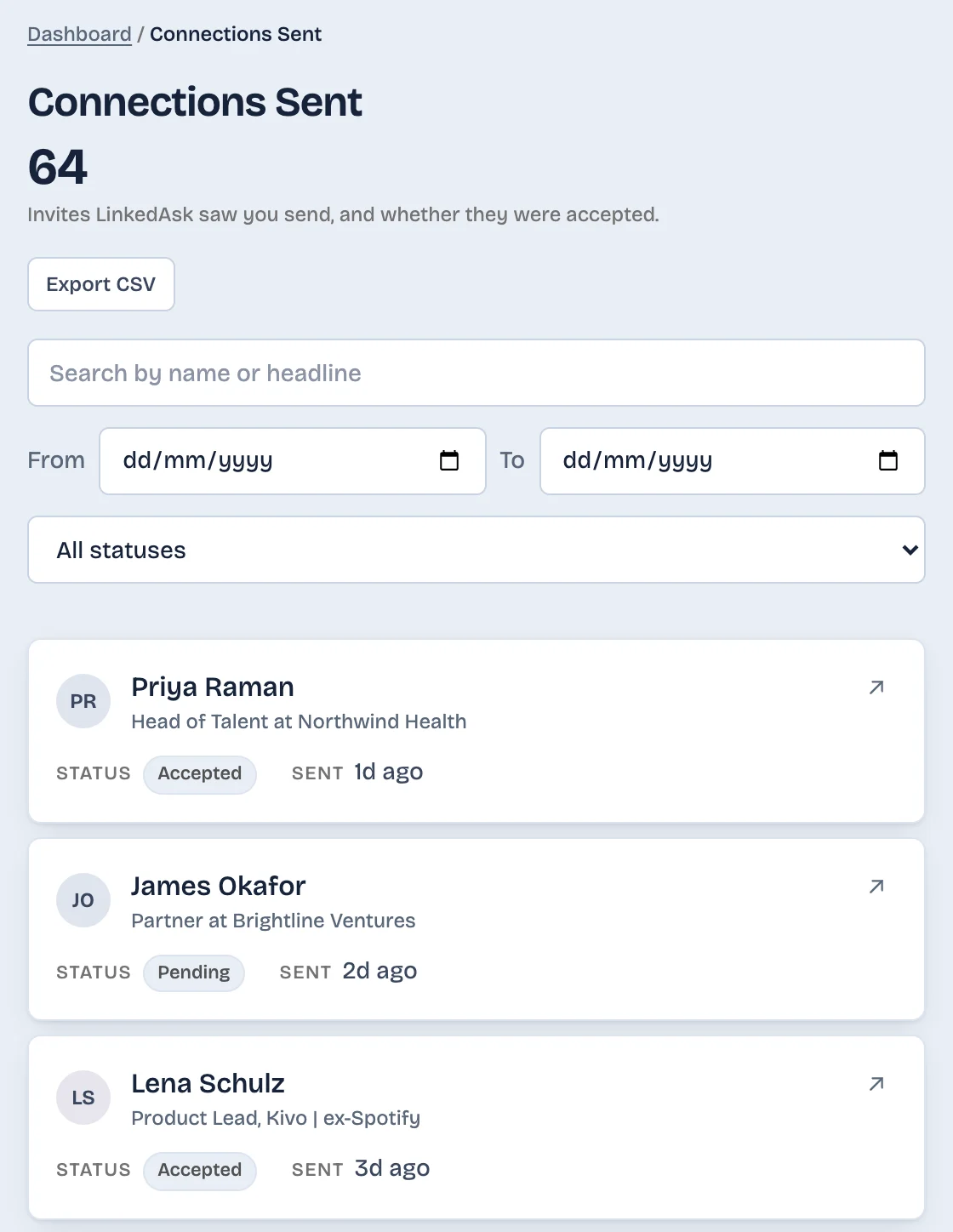
Once you answer a request, it leaves LinkedIn's invitations page, which lists pending ones only. LinkedAsk's activity history keeps what comes after you accept: the new connection on your connections list with its connected date, and the invites you send yourself, such as one back to someone you ignored by mistake, each with its date and whether it was accepted.
What to do next
- You want to connect: accept now from Focused or Other. The sender becomes a 1st-degree connection.
- You are not sure who they are: read their note and open their profile first, and reply to the note if you need to ask. Replying does not accept.
- You ignored someone by mistake: send your own invitation from their profile with a one-line note. They were not notified of the Ignore.
Received invitations: questions
Can you undo an ignore request on LinkedIn?
LinkedIn Help describes no way to restore an ignored invitation, as of October 2026. The sender was not notified, so you can open their profile and send your own invitation instead.
Can I see invitations I ignored?
Not on LinkedIn's invitations page, which shows requests still waiting for an answer. LinkedIn's data download has an Invitations file holding invitations sent and received, but LinkedIn Help does not say whether ignored ones are in it, so check the file itself.
Do received invitations expire if I never answer?
Yes. As of October 2026, LinkedIn Help says an unanswered invitation expires after six months, and you get up to two reminders first.
Can I read the note before I accept?
Yes. Open the full message and select Reply to [name]. Replying sends your answer without accepting the invitation, so you can ask what the person wants and decide afterwards.
Someone says they sent me a request, but I can't find it. Is it lost?
Probably not. Check the Other view on Manage Invitations, because LinkedIn may not send notifications for requests there. If it is in neither Focused nor Other, the sender may have withdrawn it, or it expired after going unanswered.
Keep reading
- Guide · 4 minLinkedIn sent invitations: where each one goesLinkedIn's Sent tab lists only pending invitations. Find it on desktop and in the app, see what happens to each one, and keep a record of the rest.
- Guide · 4 minHow to see all your LinkedIn connectionsYour LinkedIn connections list is under My Network, then Connections, as of October 2026. See how to search, sort and filter it, and why it looks short.
- Guide · 4 minLinkedIn connection growth over time, by monthLinkedIn shows only today's connection total. Rebuild your connection growth over time from the export's dates, month by month, and see why old months read low.
Keep a dated record of your connections.
Install the extension. Connections it sees and invitations you send stay in your history with their dates.