How to see all your LinkedIn connections
Anna SheronovaUpdated
To see all your LinkedIn connections on desktop, click My Network at the top of LinkedIn, then Connections on the left under Manage my network (as of October 2026). In the app, tap My Network, then Manage my network, then Connections. That one page lists your 1st-degree connections. You can search it by name, sort it, and narrow it with filters.
- the most your Connections page displays
- 1,000 results
- per people search on a free LinkedIn account
- 250 results
- what your profile shows past 500 connections
- 500+
Where your connections list is on each device
Your connections are the people who accepted your invitations or whose invitations you accepted, and LinkedIn keeps them all on one Connections page. Your sent invitations and where each one goes covers the step before someone lands here. The page sits in a slightly different place on each device:
| Where | What you get there | Path |
|---|---|---|
| Desktop browser | Sort, search, filterYour list of 1st-degree connections, with Sort by, Search by name and Search with filters | My Network icon, then Connections on the left under Manage my network |
| LinkedIn app | Same listThe same list of 1st-degree connections | My Network, then Manage my network, then Connections |
| Mobile browser | No sort or searchThe list, opened from a line that carries your connection count | My Network, then "[number] Connections" near the upper left |
In a mobile browser, LinkedIn Help lists only two actions on that page, Message and Remove connection, and no sort or search. For those, use the desktop page or the app.
Search, sort and filter the list
Sort by. The options are Recently added, First name and Last name, and who accepted your LinkedIn invitations covers the Recently added view.
Search by name. Type a name to find one person. To find the day you connected with them, see your connection date.
Your connections
Illustration · example data- ABAisha BelloIndependent UX researcherMessage
- DODaniel OkaforTalent partner, climate startupsMessage
- LHLena HoffmannBrand strategist, consumer appsMessage
- MCMira CastellanoFounder, small design studioMessage
Search with filters. This opens LinkedIn's people filters on your connections: Locations, Current company, Past company, School, Industry, Keywords and more, some of them under All Filters. Use it when you remember where someone worked or lived but not their name. LinkedIn Help says the app has the same search, with an Advanced option for the filters.
Filter your connections with people search
The main search bar can do the same job. Your connections appear at the top of people results, and one filter keeps the results to them:
Run a search
Click the search bar at the top of LinkedIn and run a search.
Choose People
Choose People to see only people results.
Set 1st degree
Click All Filters and set Degree of connections to 1st.
Narrow it
Add Current company, Locations or Keywords. Job title words go in Keywords.
LinkedIn also takes plain-language searches, with its own example: "People I know who work at LinkedIn". None of this needs Sales Navigator. A free account sees at most 250 results per search, 25 pages, so keep each search narrow.
To check who you know at many companies in one go, the connections-at-company tool searches your own LinkedIn connections file by company, with each person's title and the date you connected.
Your exact count and 500+
Your profile shows 500+ once you pass 500 connections, and that is a display rule. In LinkedIn's words: "We don't display the exact number of connections for a person once they are over 500." Other people see 500+ on your profile, whatever your real count is.
LinkedIn Help names one place your own number appears: the "[number] Connections" line in a mobile browser, from the table above. If you want to watch that number change over months, how your connection count grows covers that.
Why the list looks shorter than you expect
A shorter list usually has one of these causes:
- The person closed their account or removed you. The connection disappears from your list, and LinkedIn does not say which of the two happened. Removing a LinkedIn connection covers what a removal changes on both sides. To find out who it was, see how to tell if a connection removed you.
- You have a second account. A duplicate account can split your connections between two profiles.
- The page stops at a display limit. LinkedIn Help says: "The search results displayed when viewing connections are limited to 100 pages or 1000 results." Past that point, try Search with filters to narrow the list.
Export your full connections list
LinkedIn's data download is the only way to keep a full copy of your connections. Its Connections file lists all your 1st-degree connections with first and last name, profile URL, email address when the person allows it, company, position and the date you connected. You request it from LinkedIn on desktop. It is not available on mobile. The steps and each column of the file are in exporting your LinkedIn connections, and every other file in the archive is in what the LinkedIn data export gives you.
Keep a record of the people you connect with
LinkedIn's list gives you a name and a headline, with no note of how you met. Notes you keep yourself cover that, if you keep them up.
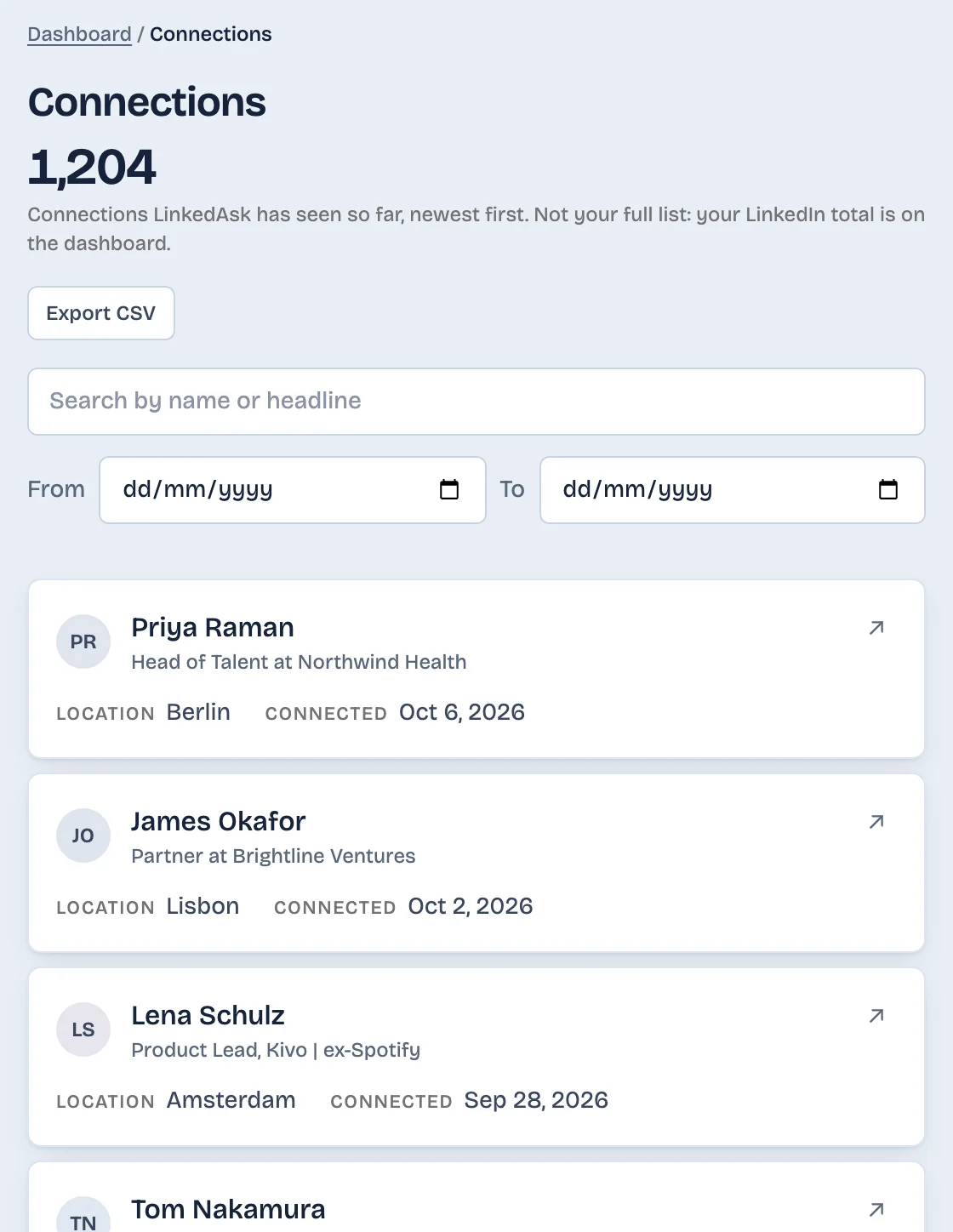
If you want the people you connect with from now on kept in one place you can search later, LinkedAsk's activity history keeps a Connections list of the connections it has seen in Chrome on your computer, newest first, with each person's headline, location and the connected date when LinkedIn showed one. You can search that list by name or headline, filter it by date and export it as a CSV.
Pick by situation
- One person: Search by name on your Connections page, a few seconds.
- Everyone at one company or in one city: Search with filters, or people search set to 1st, a minute or two.
- Everyone: the data download, a request on desktop and a wait.
Connections list: questions
Can I see all my LinkedIn connections at once?
Partly. They are all on one page, My Network then Connections, but as of October 2026 LinkedIn displays at most 100 pages or 1,000 results there. With a larger network, try Search with filters to narrow the list.
Where is my connections list in the LinkedIn app?
Tap My Network, then Manage my network, then Connections. In a mobile browser, tap My Network, then the "[number] Connections" line near the upper left.
Why does my profile say 500+?
LinkedIn does not display the exact number of connections once someone passes 500, so your profile shows 500+ to visitors. Your real count can be any number above that. LinkedIn Help names one place to see your own number: the "[number] Connections" line on the Connections page in a mobile browser.
Why does my connections list not show everyone?
People who closed their account or removed you drop off the list, and LinkedIn does not tell you which. A second, duplicate account can also split your connections. On a large network, the page also stops showing results past its display limit.
Can I filter my connections without Sales Navigator?
Yes. Use Search with filters on your Connections page, or run a people search and set Degree of connections to 1st. As of October 2026, a free LinkedIn account sees up to 250 results per search, so add a company, location or keyword to keep each search small.
Keep reading
- Guide · 4 minLinkedIn sent invitations: where each one goesLinkedIn's Sent tab lists only pending invitations. Find it on desktop and in the app, see what happens to each one, and keep a record of the rest.
- Guide · 4 minLinkedIn connection growth over time, by monthLinkedIn shows only today's connection total. Rebuild your connection growth over time from the export's dates, month by month, and see why old months read low.
- Guide · 3 minWhere to find LinkedIn invitations you receivedInvitations you received on LinkedIn sit under My Network, Invitations, split into Focused and Other. Check both, and see how to fix a mistaken Ignore.
Keep the people you connect with.
Install the extension. Connections it sees in Chrome on your computer go into one list you can search, filter by date and export.