See when you connected with someone on LinkedIn
Anna SheronovaUpdated
The date you connected with someone on LinkedIn is in the Connections file of your LinkedIn data export. Its Connected On column has one date per connection, written like 01 Oct 2026. For a quicker look, search the person on your Connections page. On my own Connections page, saved in March 2026, each row showed "Connected on" and a date. LinkedIn Help does not describe that line, and yours may differ.
- the Connections.csv column that holds the date
- Connected On
- for LinkedIn to email the larger data archive
- Within 24 hours
- the download link works once it arrives
- 72 hours
The file is one of many in the archive, and what the LinkedIn data export gives you lists the rest.
Where to find your LinkedIn connection date
| Where to look | What you get | What to know |
|---|---|---|
| Your Connections page | Seen on one accountThe person's row, found with Search by name. On my own account in March 2026, each row had a "Connected on" line with the date | LinkedIn Help does not describe the line. Yours may differ |
| Contact info on the person's profile | May show itThe details the person chose to share. A connected date may be listed | LinkedIn Help does not mention a date there |
| Connections.csv in your data export | Every connectionA Connected On date for every 1st-degree connection | Requested on desktop, emailed within 24 hours |
| Invitations.csv in the same export | Recent onlyWhen a recent invitation was sent, and by which of you | In one archive it reached back just under six months |
Look the person up on your Connections page
Your LinkedIn Connections page is the quickest place to look for a connection date, because you can search it by name. On my own Connections page, each row showed "Connected on" and a date when I saved it on March 26, 2026. LinkedIn Help does not describe the line, and yours may differ. On desktop, LinkedIn Help gives this path as of October 2026:
Open My Network
Click the My Network icon at the top of your homepage.
Open Connections
Click Connections on the left, under Manage my network.
Search the name
Type the person's name in Search by name.
Read the row
Look for the line that starts with Connected on. That is your date.
In the LinkedIn app, tap My Network, then Manage my network, then Connections, and type the name in the search bar.
Your connections
Illustration · example data- ISIngrid SolbergLook hereBrand strategist, consumer appsConnected on October 1, 2026Message
- KMKofi MensahTalent partner, climate startupsConnected on September 24, 2026Message
- PRPriya RamanIndependent UX researcherConnected on March 16, 2024Message
If your rows have no Connected on line, go to the file. Your full connections list covers the page's sorts and filters.
Check Contact info on the person's LinkedIn profile
LinkedIn Help places Contact info under See contact info in the introduction section on desktop, and in the Contact section of the profile in the app.
It holds the details the person chose to share. If a connected date is listed there, that is your date. LinkedIn Help does not mention one, so if yours has none, use the file.
Get the exact date from your LinkedIn data export
As of October 2026, LinkedIn Help says the Connections file in your data export contains the "connection date for all 1st degree connections". You request the export in a desktop browser, because the download is not available on mobile.
Open settings
Click Me, then Settings & Privacy.
Find the download
Click Data Privacy, then Download your data.
Request the larger archive
As of October 2026 Connections is not on the list of single categories. Choose Download larger data archive and click Request archive.
Open the file
LinkedIn emails a link within 24 hours, and it works for 72 hours. Download the ZIP and open Connections.csv in Excel or Google Sheets.
Find the person
Press Ctrl+F (Cmd+F on a Mac), type their last name, and read Connected On at the end of the row.
I requested my own archive on October 2, 2026, and the first ZIP with Connections.csv arrived within minutes. That is one account on one day, so plan for the 24 hours. In that file, three lines of notes sit above the column headers, and the dates went back to the first connection on the account, so old connections are in there too.
To skip the spreadsheet, drop the file or the whole ZIP into the connections CSV analyzer. It skips the notes lines, and a search by name shows the month and year you connected with that person. Exporting your LinkedIn connections to a CSV covers the request and the file in more detail.
What the Connected On date means
Connected On should be the day one of you accepted, because accepting an invitation is what makes two people 1st-degree connections. The invitation itself may have been sent days or months earlier. Who accepted your LinkedIn invitations covers the acceptance side.
Connections.csv does not say who invited whom. For a recent connection, Invitations.csv in the same archive does. In my own archive, requested October 2, 2026, that file had a Sent At date and a Direction column reading OUTGOING or INCOMING, and its oldest row was just under six months before the request.
A person who is no longer your connection has no row in Connections.csv, so the file cannot give you their date. Finding removed LinkedIn connections covers that case.
Keep the date for each new connection
The LinkedIn data export gives the connected date for today's connections, and you request it again the next time you wonder. A note written on the day you connect works too, if you keep it up.
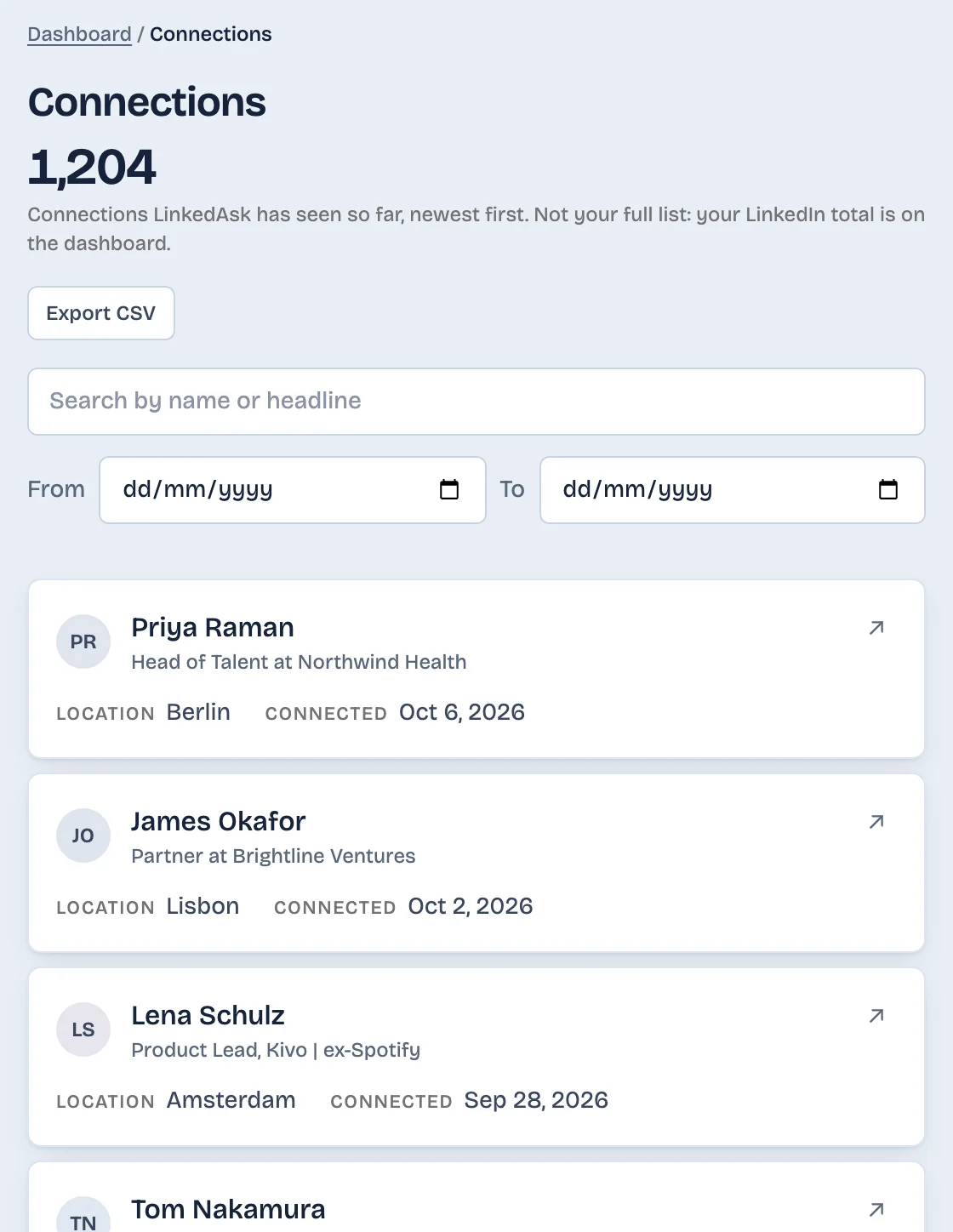
If you want it kept for you, LinkedAsk's activity history is a memory and personal CRM for your own LinkedIn. Its Connections list holds the connections it has seen in Chrome on your computer, newest first, with the connected day when LinkedIn showed one, and you can search it by name. Put someone on your watchlist and their card shows the invitation, the acceptance, your messages and your visits in order.
Pick by situation
- One person, right now: search their name on your Connections page and look for a Connected on line, about a minute.
- No line there, or you need a date you can rely on: request the archive and search Connections.csv, a few minutes of work and a wait of up to 24 hours.
- You want to know who sent the invitation: Invitations.csv in the same archive, for recent connections only.
Connection date: questions
How do you know since when you are connected on LinkedIn?
Read the Connected On date in the Connections file of your LinkedIn data export. The file has one for every 1st-degree connection. On LinkedIn itself, look at the person's row on your Connections page. On my own Connections page, saved in March 2026, each row showed a Connected on line with the date. LinkedIn Help does not describe that line.
How can I see my connection history on LinkedIn?
Connections.csv in your LinkedIn data export lists every current connection with the date you connected. On LinkedIn itself, your Connections page can sort by Recently added. As of October 2026, LinkedIn Help describes no history page for connections.
How to see when someone connected with you on LinkedIn?
Open Connections.csv in your LinkedIn data export and read Connected On on the person's row. The date is the same whoever sent the invitation.
Can you see who added who on LinkedIn?
For your own recent connections, yes. In my own LinkedIn data export, requested in October 2026, Invitations.csv marked each invitation OUTGOING when I sent it and INCOMING when the other person did. It reached back just under six months, so it may not cover older connections.
Keep reading
- Guide · 3 minLinkedIn data export: what's inside each fileHow to request your LinkedIn data export, when each part arrives, and what's in each CSV. Plus five things it never includes, like who viewed you.
- Guide · 5 minImport LinkedIn connections to Google SheetsImport LinkedIn's Connections.csv into Google Sheets with File, Import, then delete the notes above the header and check that Connected On sorts by date.
- Guide · 5 minHow to tell if someone removed you on LinkedInLinkedIn never tells you when someone removes you. Two quick checks show if a person unconnected, and one shows everyone who left your network.
Keep the day you connected with each person.
Install the extension. Connections it sees in Chrome on your computer are listed with the connected day when LinkedIn showed one.