Who accepted my LinkedIn invite? 3 ways to check
Anna SheronovaUpdated
LinkedIn has no list of accepted invitations, so you piece it together. As of October 2026, sort My Network, Connections by Recently added to see your newest connections first, check Notifications for the acceptance alert, and open the person's profile, where a 1st badge next to their name means they accepted.
- until an unanswered invitation expires and leaves Sent
- 6 months
- for LinkedIn to email the archive with connection dates
- Within 24 hours
- the most your connections list or its search shows
- 1,000 results
Where LinkedIn shows accepted invitations
An accepted invitation makes you 1st-degree connections. The person joins your connections and the row leaves your Sent list. Each place below shows part of that. Your sent invitations, and where each one goes, has the full picture of the Sent tab.
| Where to look | What it shows | What it misses |
|---|---|---|
| My Network, Connections | Newest firstYour newest connections first, once sorted by date added | Which of them came from your invitations |
| Notifications tab, email and push | One alertAn alert when someone accepts your request | The email can be skipped if you already saw the alert in the app |
| Sent tab under Manage invitations | Pending onlyInvitations still pending | Why an invitation left |
| Connections file in your data archive | With datesThe date you connected with each 1st-degree connection | Arrives by email within 24 hours, so it is a snapshot |
Sort your connections by Recently added
Your connections list, sorted by Recently added, puts the people you connected with most recently at the top. After a batch of invitations, the top rows include the people who accepted. On desktop, LinkedIn Help gives this path as of October 2026:
Open My Network
Click the My Network icon at the top of your homepage.
Open Connections
Click Connections on the left, under Manage my network.
Sort by Recently added
Open Sort by and choose Recently added. The other sorts are First name and Last name.
In the LinkedIn app, LinkedIn Help lists this path:
Tap My Network
Tap My Network in the navigation bar.
Open Connections
Tap Manage my network, then Connections.
Sort by Recently added
Choose Recently added as the sort.
In a mobile browser, tap My Network, then the "[number] Connections" line.
Your connections
Illustration · example data- LHLena HoffmannNewBrand strategist, consumer appsMessage
- TRTomás RiveraNewEngineering manager, fintechMessage
- ABAisha BelloIndependent UX researcherMessage
- ONOskar NybergAccount executive, HR softwareMessage
The newest rows also hold people whose invitations you accepted, so match the names against the people you invited. LinkedIn caps the list and its search at 100 pages or 1,000 results, which matters only if you scroll far back. Your full connections list covers searching and exporting all of it.
Open this list on the same day each week. The names above the last person you remember are the new ones.
The acceptance notification and email
LinkedIn tells you when someone accepts your connection request, in the Notifications tab, by email and with a push alert on your phone. Once you swipe it away or it scrolls down the tab, you are back to the connections list.
The email is the one people miss. LinkedIn Help says you may get no email for an update you already saw in the app, and with the "LinkedIn recommended" frequency, related emails can arrive grouped together. To change these alerts, click Me, then Settings & Privacy, then Notifications.
What a missing Sent invitation means
A name missing from your Sent tab tells you the invitation ended, without saying how. The Sent tab lists only invitations still pending, and the guide to your sent invitations shows where to find it on desktop and in the app.
An invitation leaves that tab when the person accepts, when you withdraw it, or when it expires: "Invitations expire after six months," per LinkedIn Help. An ignore sends you no notice at all. So a Sent list that keeps getting shorter while your connection count barely moves means few of those invitations were accepted. How long invitations last covers the expiry in detail.
To check one person, open their profile. A 1st badge next to their name means you are connected, so they accepted. No badge, and the row gone from Sent, means it ended without an acceptance. LinkedIn does not say how.
Find the date someone accepted
The date LinkedIn records is the day you became connected, which should be the day they accepted, not the day you sent the invitation. For one person, open their profile's Contact info: if it lists a connected date, that is the day. Finding the date you connected with one person covers each place to look.
For everyone at once, LinkedIn Help documents the Connections file in your data archive, which holds the connection date for all your 1st-degree connections:
Open settings
Click Me, then Settings & Privacy.
Find your data
Click Data Privacy, then Download your data.
Request the larger archive
Choose the larger archive, which includes Connections. LinkedIn emails it within 24 hours.
Open Connections.csv and sort by the Connected On column. Every file in the archive has its own guide, and the Connections CSV analyzer shows your connections by the date you connected without a spreadsheet.
Keep a record of who accepted
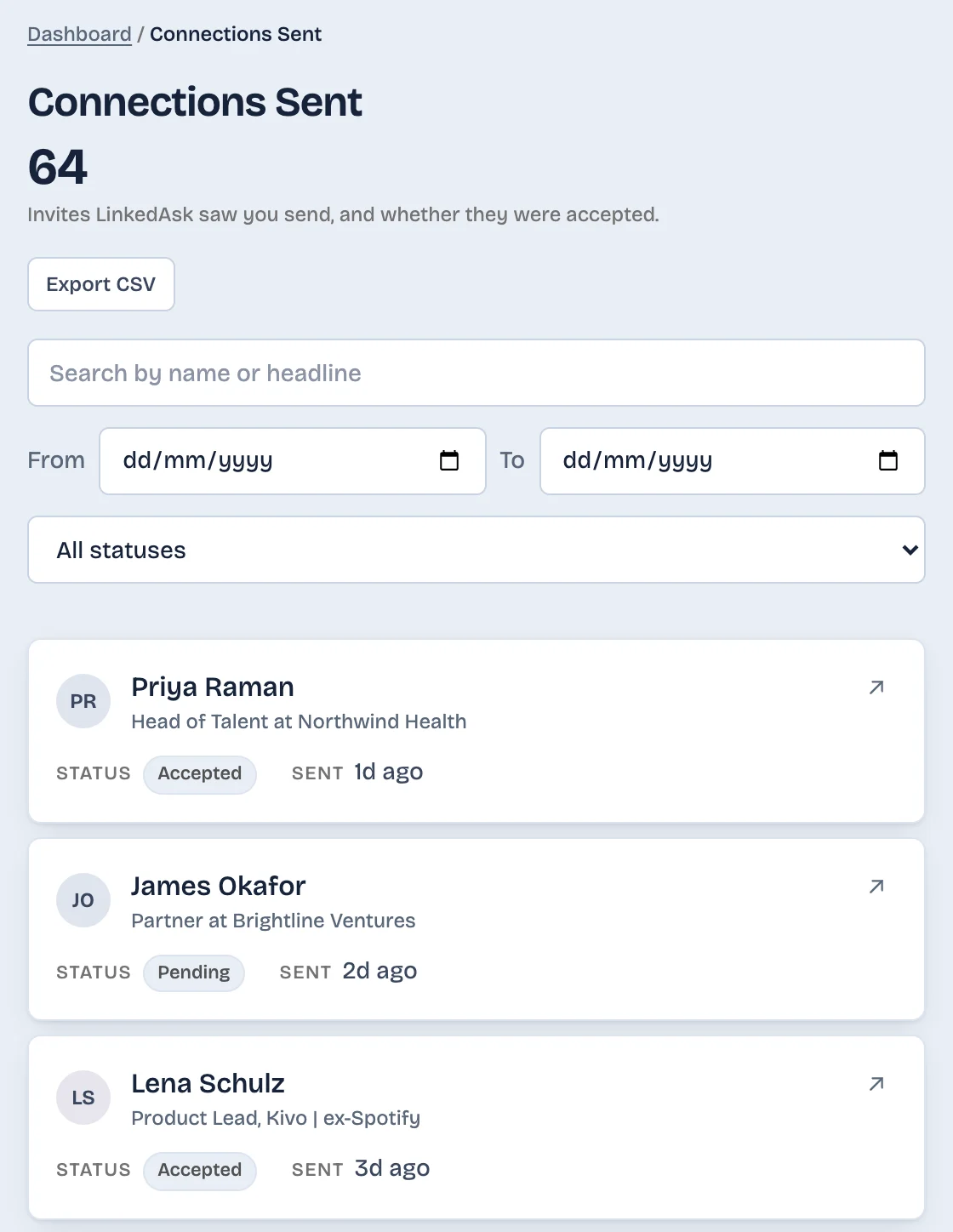
None of LinkedIn's lists says which yes came from which request. LinkedAsk's list of the invitations you sent shows the invites it saw you send, marked Accepted, Pending or No longer pending, with the day you sent them, so the outcome stays after LinkedIn's own lists move on. No longer pending is the invite that left Sent without becoming a connection. The day someone accepted is on its Connections list, when LinkedAsk has seen it.
Pick by situation
- You sent a batch this week: sort Connections by Recently added, a quick check.
- You want to know the moment someone accepts: keep acceptance alerts on in Notifications settings.
- One invitation vanished from Sent: open their profile and look for the 1st badge.
- You need dates for everyone: the archive route above, about a day's wait.
Accepted invitations: questions
Does LinkedIn notify you when someone accepts your connection request?
Yes. LinkedIn sends an alert to your Notifications tab, an email, and a push notification on your phone. You may get no email for an acceptance you already saw in the app, and emails can arrive grouped under the "LinkedIn recommended" frequency.
Can I see a list of only the invitations that were accepted?
No. On a standard account you read it from your connections, your notifications and your Sent tab. Sales Navigator users have a system list, Recently Accepted Connections and InMails, with people who accepted or replied in the last 30 days.
How can I confirm that a specific person accepted my invitation?
Open their profile. A 1st badge next to their name means you are connected, so they accepted. If they accepted recently, they also appear near the top of your connections sorted by Recently added. No badge, and no row on your Sent tab, means it ended without an acceptance.
Can I see the date someone accepted my invitation?
Yes, for everyone at once: the Connections file in your LinkedIn data archive has a Connected On date for each connection. That date is the day you became connected, which should be the day they accepted.
Where do I see accepted invitations in the LinkedIn app?
Tap My Network, then Manage my network, then Connections, and choose Recently added as the sort. Your newest connections appear first, including people whose invitations you accepted.
Keep reading
- Guide · 4 minLinkedIn sent invitations: where each one goesLinkedIn's Sent tab lists only pending invitations. Find it on desktop and in the app, see what happens to each one, and keep a record of the rest.
- Guide · 4 minHow to see all your LinkedIn connectionsYour LinkedIn connections list is under My Network, then Connections, as of October 2026. See how to search, sort and filter it, and why it looks short.
- Guide · 4 minLinkedIn connection growth over time, by monthLinkedIn shows only today's connection total. Rebuild your connection growth over time from the export's dates, month by month, and see why old months read low.
See which invitations were accepted.
Install the extension. Invitations it sees you send stay listed with their date and whether they were accepted.