LinkedIn connection growth over time, by month
Anna SheronovaUpdated
LinkedIn shows your connection total only as it stands today, and its help pages describe no record of past totals. Your data export's Connections.csv has a Connected On date for each current connection, so you can count new connections per month and add a running total in a spreadsheet. Older months read low, because people you are no longer connected to are missing.
- shown on a profile instead of the exact count past 500
- 500+
- results at most in your Connections list
- 1,000
- for LinkedIn to email the larger data archive
- Within 24 hours
Each connection starts as an invitation one of you sent, and the guide to your sent LinkedIn invitations covers that side of your network.
Where LinkedIn shows your connection count
As of October 2026, LinkedIn's help pages describe your connection number as it is today. Only one file carries dates you can count.
| Where you look | What it shows | What it tells you about growth |
|---|---|---|
| My Network | Today onlyYour number of connections, as a link | Today's total, no history |
| A profile with more than 500 connections | No exact number"500+" instead of the exact number | No exact number |
| Your Connections list | Order onlySorting by Recently added or by name. Results stop at 1,000 | Order only, capped at 1,000 results |
| Connections file in your data export | DatedName, profile URL, email, company, position and the connection date for all 1st-degree connections | The one dated record you can count by month |
Get the file with your connection dates
Request the larger data archive: in LinkedIn, open Me, then Settings & Privacy, then Data Privacy, then Download your data. As of October 2026 Connections is not one of the categories you can pick on their own, so choose "Download larger data archive". LinkedIn says the larger download is emailed within 24 hours, and the link works for 72 hours once it arrives.
I requested my own archive on October 2, 2026, and the first ZIP with Connections.csv arrived within minutes. That is one account on one day, so plan for the 24 hours. For everything else the archive holds, see what you get in a LinkedIn data export.
Open the ZIP and find Connections.csv. A few lines of notes sit above the column headers, and the date column is headed Connected On in recent files.
Chart your connection growth over time in a spreadsheet
Count new connections per month, then add a running total. Both come from counting rows by the month in Connected On. It takes about ten minutes once the file is open. If the import looks wrong, with headers not in row 1 or dates that sort like text, fix the Connections.csv import in Google Sheets first.
Import the file
Open Connections.csv in Google Sheets (File, Import) or Excel. Delete the notes lines above the header so that row 1 starts with First Name and ends with Connected On.
Check the dates
Click a cell in Connected On. If the sheet treats it as text rather than a date, add a helper column with =DATEVALUE(G2) (use your Connected On column letter) and fill it down.
Count new connections per month
Insert a pivot table with Connected On as rows. In Sheets, right-click a date in the pivot and choose Create pivot date group, then Year-Month. In Excel, right-click a date, choose Group, and select Months and Years. For values, add Connected On again and set it to COUNTA in Sheets or Count in Excel. Use Count, since each row is one person.
Add the running total
Copy the month labels and counts into two plain columns, A and B. In C2 type =SUM($B$2:B2) and fill it down. Each row now shows how many connections you had reached by the end of that month.
Fill the gaps
A pivot skips months with no new connections. Add those months with a count of 0 if you want an even time axis, then fill the column C formula down again so the running total covers the new rows.
Draw two charts
A column chart of column B shows new connections per month. A line chart of column C shows the running total.
Connections (running total)
Illustration · example data519 in Jun. Example data: a running total rebuilt from one Connections file.
Read the column chart for bursts. Tall months often line up with a new job or an event, and you will recognize them at a glance.
See your connection growth with a free tool
If you want the picture without building a pivot, drop Connections.csv or the whole export ZIP into the LinkedIn connections analyzer. It draws every connection on a calendar spiral by month and year, marks bursts (weeks with at least three times your usual adds), and shows your totals, including your biggest day.
The spiral answers "when did my network grow". For the running total and the monthly bars, use the spreadsheet.
Why past months come out too low
The file lists the people you are connected to on the day you download it. Anyone who left your network before that day has no row, so the running total for every past month comes out lower than it really was.
Removed connections, in either direction. People you removed, and people who removed you, are gone from the file. LinkedIn does not notify the other person when a connection is removed, so your total can drop without any message.
Closed accounts. Closing a LinkedIn account deletes its connections, so people who left LinkedIn drop out of your file too.
Each missing person lowers the running total from the month you connected onward. A thin month in the column chart may simply mean that people from that month later left.
To see who disappears from now on, export again on a fixed day, for example the first of each month, keep every file, and compare two of them to see who is gone. How removing a LinkedIn connection works explains what changes for both sides.
Record your connection total from today
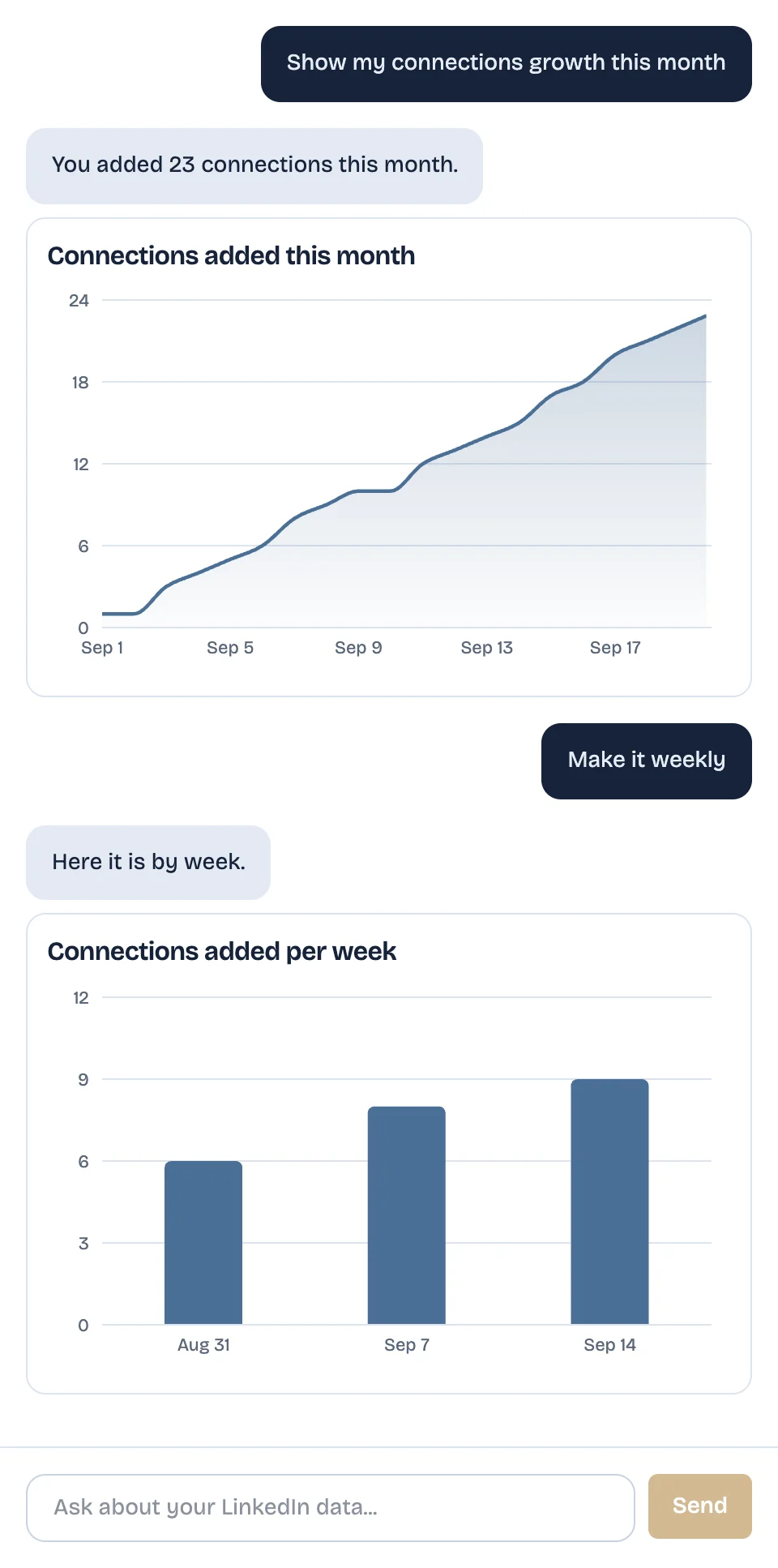
The export can rebuild the past, but it cannot tell you what your total was last Tuesday, and repeating it every month is a chore. If you want the number kept for you from now on, LinkedAsk's AI chart builder can chart it. LinkedAsk saves the connection total LinkedIn shows you, once a day on days you open your connections page or My Network. Ask "how did my connections grow this month" and the chat draws the chart. Ask again to change it, for example by week.
Pick by situation
- A one-off look back (a year in review, a job search since spring): the spreadsheet steps above, about ten minutes once the file arrives.
- You only want to see when your bursts happened: the free analyzer, a couple of minutes with the same file.
- A monthly connection goal you track from now on: a fixed-day export each month, or a tool that records your total from install day.
- You want the exact totals you had years ago: no option recovers them. The rebuilt curve is the closest you can get.
Connection growth: questions
Does LinkedIn Premium show connection growth?
LinkedIn's help pages describe no chart of your connection total on any plan. The growth chart they describe is audience analytics, which counts followers, including connections and non-connection followers, over the past 7 to 365 days. That is a different number from your connection count.
Does the LinkedIn export include the date you connected?
Yes. LinkedIn says the Connections file includes the connection date for all your 1st-degree connections. It comes in the larger data archive as Connections.csv, and the date sits in the Connected On column.
Why does my rebuilt total not match the number on my profile?
People who were removed or closed their accounts have no row in the file, so past months run lower than they really were. The latest point of your running total should sit close to the total LinkedIn shows you today. Other people see "500+" on your profile once you pass 500, in place of the exact figure.
How do I see how many connections I added this year?
Filter Connected On to this year and count the rows, or read this year's months in the pivot table from the steps on this page. A filter on one quarter or one month works the same way.
Keep reading
- Guide · 4 minLinkedIn sent invitations: where each one goesLinkedIn's Sent tab lists only pending invitations. Find it on desktop and in the app, see what happens to each one, and keep a record of the rest.
- Guide · 4 minHow to see all your LinkedIn connectionsYour LinkedIn connections list is under My Network, then Connections, as of October 2026. See how to search, sort and filter it, and why it looks short.
- Guide · 3 minWhere to find LinkedIn invitations you receivedInvitations you received on LinkedIn sit under My Network, Invitations, split into Focused and Other. Check both, and see how to fix a mistaken Ignore.
Keep your connection total from today.
Install the extension. It saves the total LinkedIn shows you on days you open your connections page or My Network, and the chat charts it when you ask.