Import LinkedIn connections to Google Sheets
Anna SheronovaUpdated
To import LinkedIn connections to Google Sheets, open a spreadsheet, choose File, then Import, and pick Connections.csv from your LinkedIn data archive. Then delete the note lines above the column headers, three in my October 2026 file, and check that the Connected On column holds real dates, not text. Blank email cells and some rows with no profile URL are in the file as LinkedIn wrote it, so nothing there needs repair.
- of notes above the column headers in my own file
- 3 lines
- from First Name to Connected On
- 7 columns
- how the file writes each Connected On date
- 01 Oct 2026
Connections.csv is one file in LinkedIn's data archive, and what you get in a LinkedIn data export covers the rest. If you do not have the file yet, how to export your LinkedIn connections to CSV has the request steps.
Open the CSV in Google Sheets with File, Import
Use File, then Import. Google's import steps ask for an import location and a separator.
Find the file
Open the ZIP you downloaded from LinkedIn and take out Connections.csv.
Open the import
In Google Sheets on a computer, open a new spreadsheet, click File, then Import, and choose Connections.csv.
Pick where it goes
In a new, empty spreadsheet choose Replace spreadsheet. In a spreadsheet you already use, choose the option that inserts new sheets.
Keep the separator
Leave the separator setting as it is, or set it to Comma, then click Import.
Clear the top rows
Delete every row above the one that starts with First Name.
Check the dates
Make sure Connected On sorts by date before you rely on it.
What looks wrong in Connections.csv after the import
Most of what looks broken in an imported Connections.csv was already in the file. In my own archive, requested October 2, 2026, Connections.csv opened with three lines of notes above the column headers, dates written like 01 Oct 2026, mostly empty email cells and some rows with no profile URL. Only the first two need a fix.
| What you see | Why | What to do |
|---|---|---|
| The column headers are not in row 1 | Lines of notes sit above them in the file | Delete the rows above First Name, then freeze row 1 |
| Connected On sorts A to Z, not by date | Dates are written like 01 Oct 2026 and can arrive as text | Sort Z to A to test. If it sorts as text, add a DATEVALUE column |
| Most Email Address cells are blank | Each person chooses whether connections can download their email | Nothing. The file holds no more |
| Some rows have no URL | The file comes that way | Keep the rows, and never remove duplicates by URL alone |
| Names show odd symbols | The file is UTF-8 and the program read it as another character set | In Excel, import through Data and choose UTF-8, per Microsoft. In Google Sheets, import the untouched file again |
My Connections.csv was UTF-8 text with no byte-order mark, and many names in it held accented or non-Latin letters. If those names show as odd symbols in Google Sheets, import the untouched Connections.csv from the ZIP again. For Excel, use the import route in the Excel section below.
Move the column headers to row 1
Select the rows above First Name by their row numbers, right-click and choose the option to delete the selected rows. They are a note from LinkedIn about hidden email addresses.
Row 1 should now read First Name, Last Name, URL, Email Address, Company, Position, Connected On. Select that row, click View, then Freeze, and pick one row. Google's sort and filter page says to freeze the first row when it holds headers.
Make Connected On sort by date
Sort Connected On once before you trust it as a date column. The file writes each date like 01 Oct 2026, and Google says the date formats Sheets recognizes can depend on region and language settings. In one spreadsheet the column may arrive as real dates, in another as plain text.
Right-click the Connected On column letter and choose Sort sheet Z to A. Real dates put your newest connection on top. Text sorts by its first characters, so a row dated 31 Mar 2021 lands above one dated 01 Oct 2026.
If the column is text, convert it in a helper column:
- Add a column to the right of Connected On and name it Connected date.
- In its first data row type
=DATEVALUE(G2)and fill it down. G is Connected On when the seven columns sit in A to G. - The results are numbers. Select the column and choose Format, then Number, then Date.
- Sort and filter on Connected date from now on.
If the formula returns #VALUE! on every row, your spreadsheet's settings do not read this date format. Open File, then Settings, set Locale to United States, click Save settings and try the formula again. Google does not say which locales read this format, so compare a few rows with the original column. The locale applies to the whole spreadsheet, for everyone who uses it.
Blank emails and missing URLs are normal
Leave blank Email Address and URL cells as they are. Nothing was lost in the import. LinkedIn's help page says emails are missing because members choose "whether to allow others to download their email address".
Some rows in my file also had an empty URL cell, and LinkedIn's help page does not say why. Those rows still carry a name, company, position and date, so keep them.
Sort and filter the clean sheet
The Z to A sort on the date column puts your newest connections on top. For everyone at one company, choose Data, then Create a filter, open the filter on Company, untick the names you do not want and click OK. The same employer can appear under more than one spelling, so type part of the name in the filter's search box and keep each match ticked.
To chart new connections by month, follow the pivot table steps in LinkedIn connection growth over time.
When you import a newer file later, put it on its own tab, clear its note rows, paste its rows under the old ones and run Data, then Data cleanup, then Remove duplicates. Tick First Name, Last Name and Connected On as well as URL, because rows with no URL would otherwise count as copies of each other. Duplicate the tab before you run it.
Open LinkedIn connections in Excel
Excel opens a .csv file straight into a new workbook, and you delete the rows above First Name there. To clear them during the import instead, use Data, then From Text/CSV, choose Transform Data, then Remove top rows and promote the header row. Excel reads each column with its current default data format settings, so run the same sort check on Connected On.
My Connections.csv was UTF-8 with no byte-order mark, and Microsoft says Excel opens a UTF-8 CSV normally only when the file has that mark. If names show odd symbols, use Data, then Get Data, then From File, then From Text/CSV, and set File Origin to UTF-8.
Read Connections.csv without cleaning it
For a quick look, these free tools read Connections.csv as it comes, note lines included. The connections analyzer places every connection at the month and year you connected. The connections-at-company search lists everyone at one employer with their title and the date you connected.

What the connections file does not hold
The seven columns of Connections.csv say nothing about the profiles you opened, who viewed yours, or what happened to the invitations you sent.
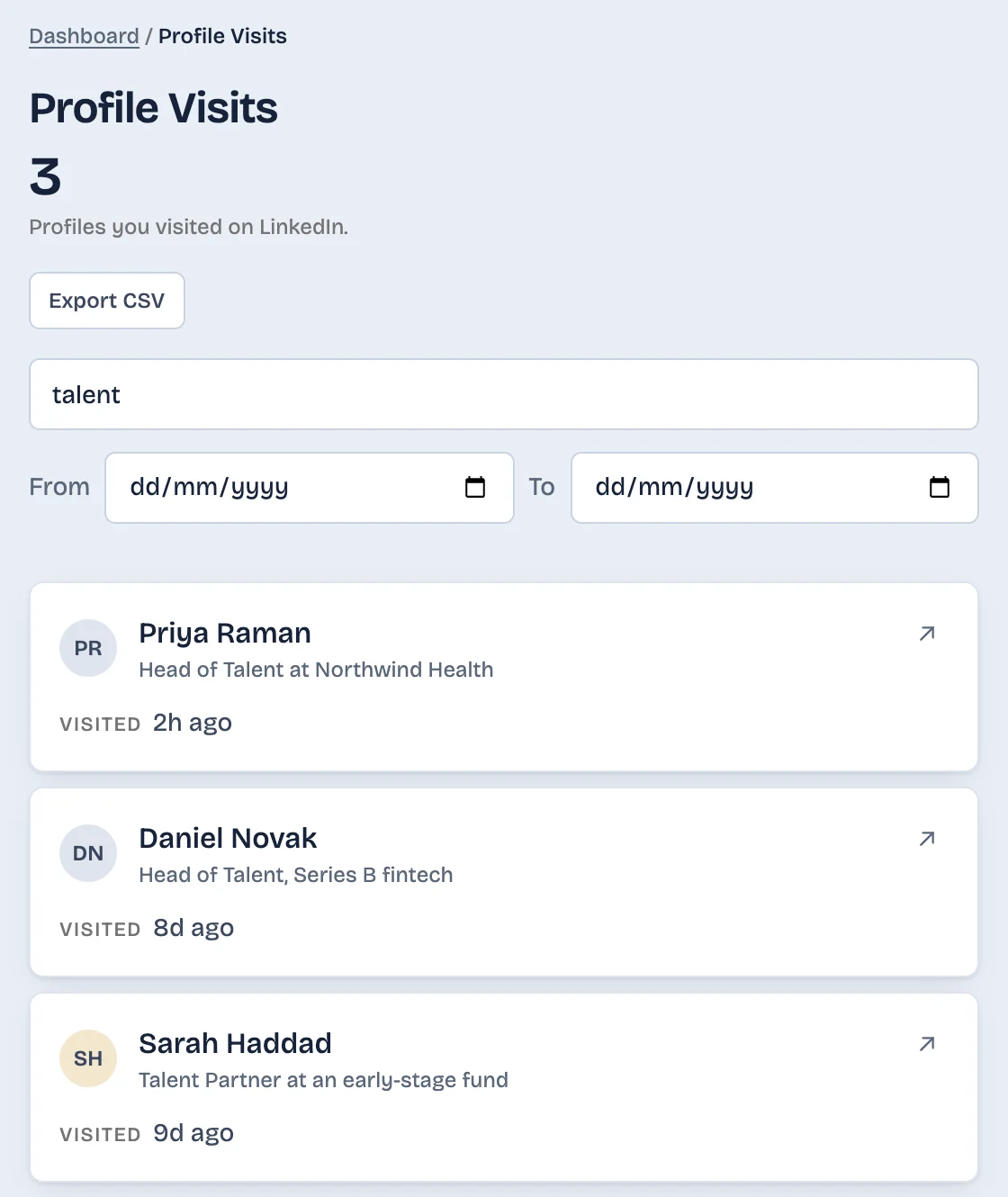
If you want those in a sheet as well, LinkedAsk's activity history is one option. LinkedAsk is a Chrome extension that works as a memory and personal CRM for your own LinkedIn. From the day you install it, it keeps dated lists of the profiles you visit, your invitations and whether they were accepted, your reactions, your viewers and your followers. Each list has an Export CSV button.
Pick by situation
- You want a chart by month: the pivot table in the connection growth guide.
- You only want to look something up: the free tools, with no cleanup.
LinkedIn connections in Sheets: questions
How do I move a CSV to Google Sheets?
Open a spreadsheet in Google Sheets on a computer, click File, then Import, and choose the file. Choose where the data goes, leave the separator as it is and click Import. For LinkedIn's Connections.csv, then delete the note rows above the header.
How can I export my LinkedIn contacts to Excel?
Request the larger data archive from LinkedIn, then open Connections.csv from the ZIP in Excel. Delete the rows above the one that starts with First Name, and check that Connected On sorts by date. Connections.csv is the same file you would import into Google Sheets.
Why won't Connected On sort by date in Google Sheets?
LinkedIn's Connections.csv writes Connected On dates like 01 Oct 2026, and Google Sheets may keep them as text. Text sorts by its first characters, not by date. Add a column with DATEVALUE, format it as a date, and sort on that column.
Can I import a CSV into Google Sheets on a phone?
No. Google's help page for Android and iPhone says to import on a computer at sheets.google.com. Once imported, the sheet opens in the Sheets app like any other.
Keep reading
- Guide · 3 minLinkedIn data export: what's inside each fileHow to request your LinkedIn data export, when each part arrives, and what's in each CSV. Plus five things it never includes, like who viewed you.
- Guide · 5 minHow to tell if someone removed you on LinkedInLinkedIn never tells you when someone removes you. Two quick checks show if a person unconnected, and one shows everyone who left your network.
- Guide · 4 minSee when you connected with someone on LinkedInThree places that can show when you connected on LinkedIn: the person's Contact info, your Connections page, and a date column in your data export.
Keep the lists the connections file lacks.
Install the extension. It keeps dated lists of the profiles you visit, your invitations and your viewers from that day on, each with an Export CSV button.