How to calculate your LinkedIn acceptance rate
Anna SheronovaUpdated
As of October 2026, LinkedIn's Help pages describe no acceptance rate for the invitations you send, so you work it out yourself: invitations accepted divided by invitations sent in the same period, times 100. The number depends on how you count invitations still pending. Count a period that ended at least 30 days ago and report two rates.
- until an unanswered invitation expires, per LinkedIn Help
- 6 months
- the export download link stays live, per LinkedIn Help
- 72 hours
The LinkedIn acceptance rate formula
Acceptance rate = invitations accepted ÷ invitations sent in the same period × 100.
The same 40 invitations can give 55% or 68.8%, depending on how you count the pending ones.
Where LinkedIn keeps each number
For one period, count the invitations sent, accepted, still pending and withdrawn. LinkedIn spreads them across two pages and one file, and you add them up yourself.
Still pending: the Sent tab. As of October 2026, LinkedIn Help gives the path as My Network, then Invitations, then Sent, on desktop and in the app. It lists invitations still waiting for an answer, and accepted ones leave it. The guide to your sent LinkedIn invitations covers that page in full.
Accepted: your Connections list. Accepted invitations become new connections. LinkedIn Help says you can sort the Connections page by Recently added. New connections also include people whose invitation you accepted, so count only the ones you invited.
Sent, with dates: the data export. Invitations that left the Sent tab are no longer there to count. Download your data gives an Invitations file with the date each one was sent and a Connections file with the date you connected.
Expired invitations are covered in do LinkedIn invitations expire.
| Invitation state | Where you see it | Raw rate | Settled rate |
|---|---|---|---|
| Accepted | VisibleA new connection, under Recently added | Accepted | Accepted |
| Still pending | VisibleThe Sent tab | Not accepted | Left out |
| Withdrawn | Not listedNowhere: it leaves the Sent tab and LinkedIn keeps no list | Not accepted | Left out |
| Ignored | UnclearNo notice to the sender. LinkedIn does not say if it stays in Sent | Not accepted | Left out if still shown as pending, else not accepted |
| Expired | Not listedNowhere: no longer pending after six months | Not accepted | Not accepted |
Counting pending, withdrawn, ignored and expired invites
Fix the period first, then sort every invitation in it into one of the states above.
Pick a period
Take the invitations you sent in one week or month that ended at least 30 days before you count, for example March, counted in May. That cutoff is this guide's choice. LinkedIn sets no such number. A month should give most people time to answer.
Work out the raw rate
Divide accepted by everything sent in the period. Pending and withdrawn invitations count as not accepted. A later acceptance can only raise this number, so treat it as the floor.
Work out the settled rate
Divide accepted by sent minus withdrawn minus still pending. This is the rate among invitations that already have an outcome. If some pending ones are accepted later, the final rate can end up above it.
Put ignored and expired invitations in their place
If an ignored invitation still shows as pending, it drops out of the settled count. If it left, it stays in as not accepted. Expired invitations no longer show as pending, so they count as not accepted in both rates.
Report both, with the period dates
The period plus both rates tells you, and anyone you share it with, exactly what was counted. If you did not note withdrawals, the settled rate leaves out only what is still pending.
On ignored invitations, LinkedIn Help says the sender is not notified, and LinkedIn does not say whether an ignored one stays in your Sent tab. Invitations expire after six months and then no longer show as pending.
The two rates close in as the period ages. The gap that stays is the withdrawn invitations, so note each one as you withdraw it.
Sent
Pending
Accepted
Withdrawn
Ignored
Expired
Accepted
Withdrawn
Ignored
Expired
Acceptance rate example: 40 invitations
Example numbers: in March you sent 40 invitations. On May 1, 22 had been accepted, you had withdrawn 3, and 5 still showed as pending in your Sent tab.
- Raw rate: 22 ÷ 40 × 100 = 55%.
- Settled rate: 22 ÷ (40 - 3 - 5) × 100 = 22 ÷ 32 × 100 = 68.75%, which the calculator shows as 68.8%.
The other 10 were ignored, or you cannot see what happened to them. They count as not accepted in both rates. Change the numbers below to your own. The checkbox switches between the raw and the settled rate.
Your acceptance rate
Calculator · example numbersAcceptance rate
55%
22 accepted ÷ 40 sent × 100 = 55%
Calculate acceptance rate from the data export
The export suits a longer period. Column names below are from my own export, October 2026. LinkedIn says a single category such as Invitations is emailed within minutes and the larger archive, which holds Connections, within 24 hours. The download link lasts 72 hours. The walkthrough of the LinkedIn data export covers the rest of the archive.
Request the two files
Go to Me, then Settings & Privacy, then Data Privacy, then Download your data. Choose the larger archive, which holds both Invitations and Connections.
Count sent
In my Invitations.csv the columns were From, To, Sent At, Message, Direction, inviterProfileUrl and inviteeProfileUrl. Keep rows where Direction is OUTGOING and Sent At falls in your period. My file kept accepted invitations too and had no outcome column. Its oldest row was just under six months old, so check the earliest Sent At date before you pick a period.
Mark accepted
Connections.csv opens with a short Notes block, then a header row with First Name, Last Name, URL, Email Address, Company, Position and Connected On. An invitee URL that also appears in the URL column is an accepted invitation, and Connected On gives the day. Match URLs without trailing slashes.
Convert the dates
The two files write dates differently (Sent At like 9/16/26, 12:19 PM, and Connected On like 01 Oct 2026). Convert both to one format before you group by week or month.
Sort the rest
A row with no match could be pending, ignored, withdrawn or expired, and the file cannot tell which. Take the still-pending count for that period from your Sent tab and withdrawals from your own notes. Anything you cannot place counts as not accepted.
Track your acceptance rate by week or month
Run the same rule for every period, counting each one once it is old enough. A spreadsheet with one row per invitation does the work, with columns for name, date sent, accepted (yes or no), date accepted and withdrawn (yes or no). COUNTIFS on the date sent gives invitations sent per week. Add the accepted condition for acceptances. A bar chart of sent against accepted per week shows the trend.
Dividing new connections by invitations sent inflates it, because new connections include people who invited you. Counting this week's invitations deflates it, because most are still pending. Compare each month with your own earlier months, measured the same way.
Keep a record of your acceptance rate
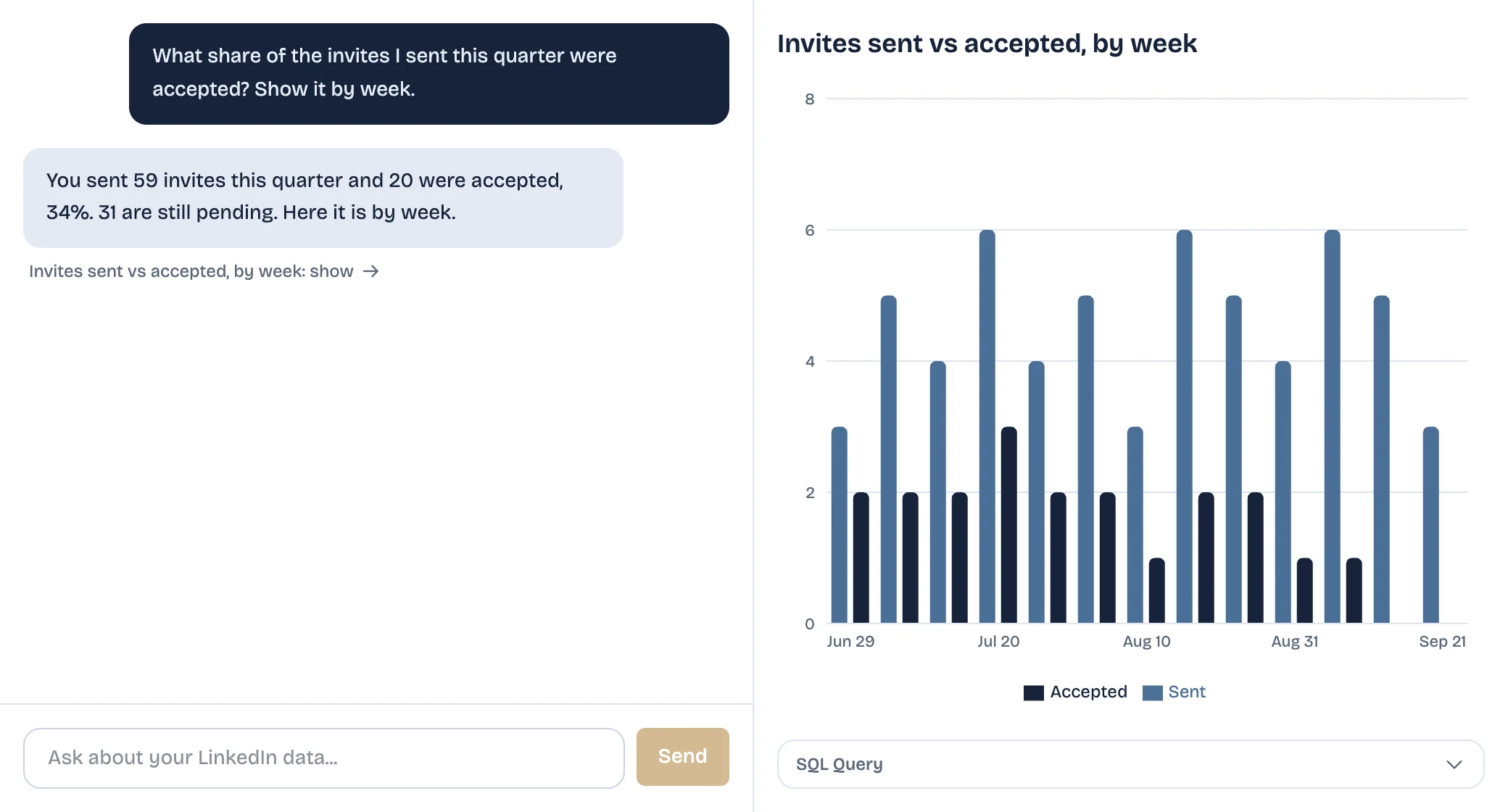
Accepted invitations leave the Sent tab, so every month you rebuild the list from the export and redo the join. LinkedAsk's AI chart builder records the invitations it sees you send from Chrome after you install it, with the date, and whether the person connected. Ask its chat "what share of my invites were accepted this month" and you get the number and a chart of invites sent and accepted.
Pick by situation
- A few invitations a month: the Sent tab plus Connections sorted by Recently added, done in one sitting.
- A longer period or several months: the data export, with the URL join above.
- You withdraw invitations often: note each withdrawal when you make it, so the settled rate stays exact.
- You want the number every week without rebuilding it: a sheet with one row per invitation, or a tool that records invitations as you send them.
More places to check are in the guide to who accepted your LinkedIn invitation.
Acceptance rate: questions
Does LinkedIn show my connection acceptance rate?
Not as of October 2026: LinkedIn's Help pages describe no acceptance rate, so you calculate it. Divide invitations accepted by invitations sent in the same period and multiply by 100.
Should pending invitations count as not accepted?
Count them as not accepted in the raw rate and leave them out of the settled rate. Measure a period that ended at least 30 days ago, so few are still open. Reporting both shows the range. For example, 40 sent with 22 accepted, 3 withdrawn and 5 still pending gives 55% raw and 68.8% settled.
Do withdrawn invitations count in the rate?
They count as not accepted in the raw rate and drop out of the settled rate. LinkedIn keeps no list of withdrawn invitations, so note each one when you withdraw it, or the settled rate can only leave out what is still pending.
Can I calculate it from the LinkedIn data export?
Yes. Take the OUTGOING rows of Invitations.csv for your period and match their invitee URLs to the URL column of Connections.csv. A match is an accepted invitation. The file has no outcome column, so it cannot separate pending, ignored, withdrawn and expired invitations.
Keep reading
- Guide · 4 minLinkedIn sent invitations: where each one goesLinkedIn's Sent tab lists only pending invitations. Find it on desktop and in the app, see what happens to each one, and keep a record of the rest.
- Guide · 4 minHow to see all your LinkedIn connectionsYour LinkedIn connections list is under My Network, then Connections, as of October 2026. See how to search, sort and filter it, and why it looks short.
- Guide · 4 minLinkedIn connection growth over time, by monthLinkedIn shows only today's connection total. Rebuild your connection growth over time from the export's dates, month by month, and see why old months read low.
Get your acceptance rate without rebuilding it.
LinkedAsk records the invites it sees you send, with the date, and whether each person connected. Ask its chat for the share accepted this month.