Skip to content

Your LinkedIn acceptance rate, month by month

Drop the ZIP from your LinkedIn data export, or Invitations.csv and Connections.csv. The page counts the invitations you sent each month and how many of those people are now your connections.

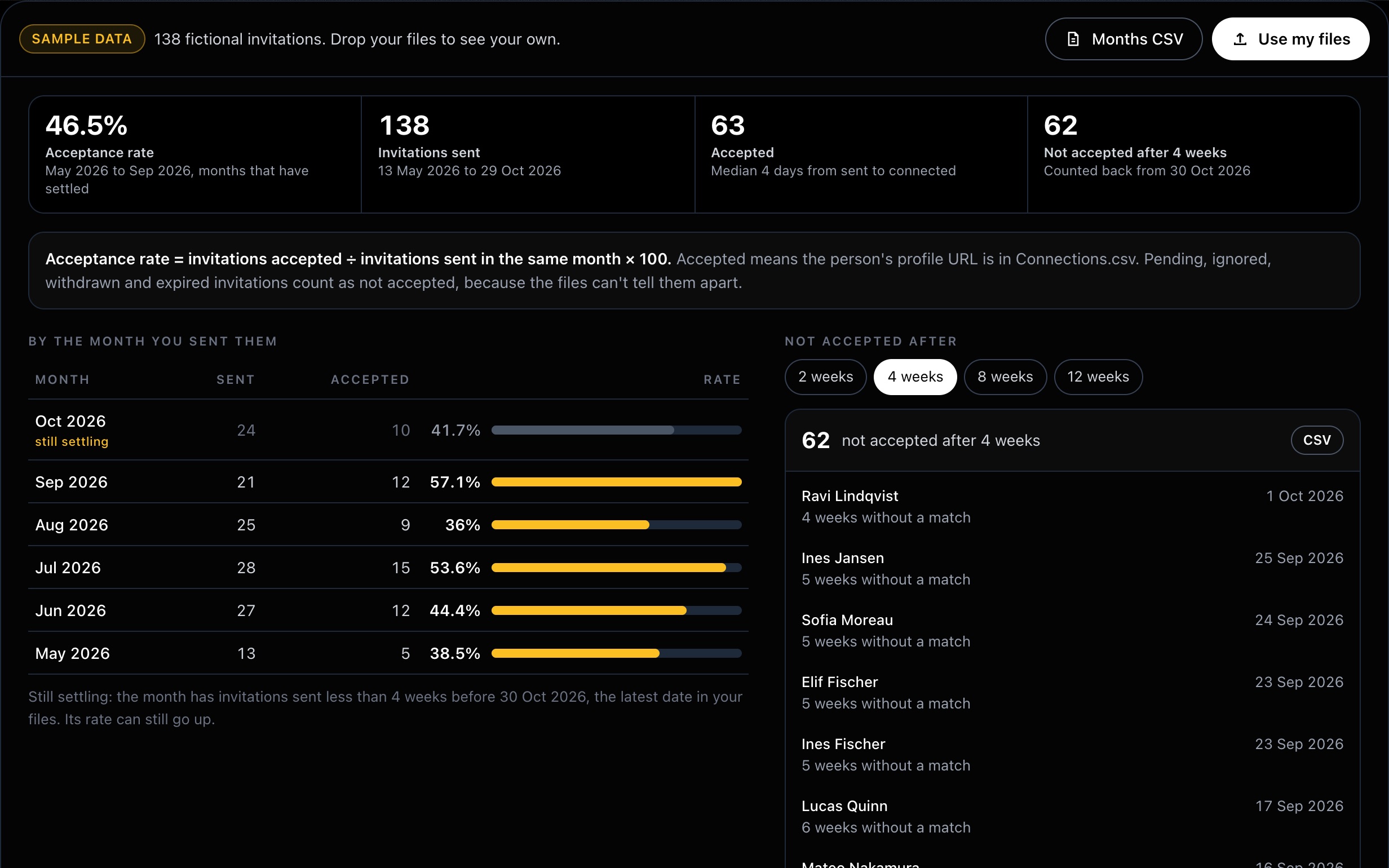
SampleThe acceptance rate tool with sample data: invitations sent and accepted per month, and the invitations not accepted after four weeks.
Free. No sign-up.

Your export stops on the day you download it

Accepted invitations leave your Sent tab, and Invitations.csv has no outcome column, so every month you request a new export and match the two files again.

LinkedAsk's AI chart builder records the invitations it sees you send from Chrome after you install it, with the date, and whether the person connected. Ask its chat "what share of my invites were accepted this month" and you get the number and a chart. Add LinkedAsk to Chrome.

Invitations.csv

Who you invited and when, up to the day you export. No outcome.

LinkedAsk, from install day

Each invitation it sees you send, with the date and whether the person connected.

How the acceptance rate is calculated

Acceptance rate = invitations accepted ÷ invitations sent in the same month × 100. It is the rate from how to calculate your LinkedIn acceptance rate, worked out for every month in your file.

Sent is every row of Invitations.csv with Direction OUTGOING, grouped by the month in Sent At. Accepted means the person's profile URL from the inviteeProfileUrl column is also in the URL column of Connections.csv. If you invited someone twice, only the later invitation can count as accepted.

Pending, ignored, withdrawn and expired invitations all count as not accepted. Invitations.csv has no outcome column, so the page can't tell them apart. That makes each month's number a floor: a later acceptance can only raise it.

Why recent months read low

Invitations you sent last week mostly have no answer yet, so counting them pulls the rate down. A month is marked still settling while some of its invitations are younger than the number of weeks you pick, 4 by default. The headline rate counts only the months that have settled.

The page counts back from the latest date in your two files, because it can't know the day you downloaded them. Pick 2, 4, 8 or 12 weeks and the list next to the table shows every invitation not accepted after that long, newest first, with a link to the profile. LinkedIn says invitations expire after six months and then no longer show as pending.

Still-pending invitations are listed in your Sent tab on LinkedIn. The guide to your sent LinkedIn invitations covers that page.

What's in Invitations.csv and Connections.csv

In an export from October 2026, Invitations.csv had seven columns: From, To, Sent At, Message, Direction, inviterProfileUrl and inviteeProfileUrl. It kept accepted invitations, had no column for the outcome, and its oldest row was just under six months old. Check the earliest month in the table before you compare it with older numbers.

Connections.csv opens with a short Notes block, then First Name, Last Name, URL, Email Address, Company, Position and Connected On. The page skips the Notes lines and reads both date formats: Sent At like 9/16/26, 12:19 PM and Connected On like 01 Oct 2026.

LinkedIn says it emails a single category such as Invitations within minutes, and the larger archive, which holds Connections, within 24 hours. The larger archive holds both files, so one ZIP is enough. What the LinkedIn data export gives you covers the rest of the archive.

Questions about the acceptance rate

Short answers about the files and the number.

How do I calculate my LinkedIn acceptance rate?

Divide the invitations accepted by the invitations sent in the same period and multiply by 100. As of October 2026, LinkedIn Help describes no acceptance rate for the invitations you send, so you work it out from your own data. This page does it for each month from Invitations.csv and Connections.csv.

Should pending invitations count as not accepted?

On this page they do, so each month shows accepted ÷ all sent, the lowest the rate can be. The acceptance rate guide also describes a settled rate that leaves out pending and withdrawn invitations. That one needs your Sent tab and your own notes. With 40 sent, 22 accepted, 3 withdrawn and 5 still pending, the first gives 55% and the settled rate 68.8%.

Does Invitations.csv show which invitations were accepted?

No. In an export from October 2026 the file kept accepted invitations and had no outcome column. This page marks an invitation accepted when the person's profile URL is also in Connections.csv.

Why does someone I know accepted show as not accepted?

The match is on the profile URL. If the two files carry different URLs for that person, they don't match. Open the profile and check the degree next to the name: 1st means you are connected.

Is my file uploaded anywhere?

Not unless you choose to. The page opens the file inside your browser and does all the work there. LinkedAsk has no copy of it unless you press Keep this in LinkedAsk and sign in to save it. Close the tab and it is gone. You can check: load this page, turn off your Wi-Fi, then drop your file. It still works.

Keep counting from today

LinkedAsk records your LinkedIn activity as you browse: visits, invites, replies and who viewed you.

Add LinkedAsk to Chrome