LinkedIn Other inbox: find messages you missed
Anna SheronovaUpdated
A LinkedIn message you never saw has often landed in Other, the second half of Focused Inbox. As of October 2026, open Messaging and pick Other from the inbox category dropdown at the top (Focused, Other, Archived, Spam). LinkedIn sorts messages between the two by relevance. To bring a conversation back, open it, click the More icon and choose Move to Focused.
- in the inbox dropdown: Focused, Other, Archived, Spam
- 4 categories
- where LinkedIn Help documents Move to Focused
- Desktop only
- Focused and Other send notifications for new messages
- Both
If the conversation is not in Other either, the guide to where LinkedIn messages go when they disappear checks every other place.
Messaging
Illustration · example data- ICImani ClarkeThe message you missedOct 9Following up on the proposal you asked me for last week.
- TRTomas ReyesSep 30Would you be open to a quick chat about a role on my team?
- HZHannah ZellerSep 22Thanks for accepting my request!
Where the Other inbox is on desktop and in the app
As of October 2026, per LinkedIn's Use filters and search for messages:
| Where you are | What you see | How to open Other |
|---|---|---|
| Desktop, Messaging page (the Messaging icon at the top of LinkedIn) | Inbox category dropdown at the top of the list | Click the dropdown, choose Other |
| Desktop, conversation window at the lower right | Focused and Other tabs | Click the Other tab |
| LinkedIn app (the Messaging icon in the upper right) | Inbox category dropdown at the top | Tap the dropdown, choose Other |
| Any screen, no Other anywhere | One list, no split | Focused Inbox is off or not yet available to you |
LinkedIn's older Focused Inbox page still calls Focused and Other tabs. If a guide says "click the Other tab" and you see a dropdown, your screen matches the newer page the table follows. Screens can differ by account.
Why LinkedIn put the message in Other
LinkedIn says only that Focused Inbox sorts messages "based on their relevance to you", using machine learning, and it publishes no rules for which message goes where: no sender list, no InMail rule and no inactivity window. It documents no exception for connections, so a message from someone you know can land in Other too.
LinkedIn's Focused Inbox page documents two facts that explain the most common surprises:
- Old conversations in Other. When Focused Inbox started, LinkedIn ran a one-time cleanup that kept recent, active conversations in Focused and moved older and less relevant ones to Other.
- "I never turned this on." LinkedIn says that in some cases it turned Focused Inbox on automatically for members outside the EU.
LinkedIn says push notifications and badges arrive for new messages in both Focused and Other, with a blue unread dot next to the tab and a banner at the top of the inbox for unread messages in Other.
Move a conversation from Other to Focused
Moving a conversation is the one per-conversation control LinkedIn documents, and it documents it for desktop. On LinkedIn in a browser, as of October 2026:
Open Messaging
Click the Messaging icon at the top of LinkedIn.
Choose Other
Open the inbox category dropdown and choose Other, or click the Other tab in the lower-right window.
Open the conversation
Click the conversation you want to keep in view.
Move to Focused
Click the More icon at the upper right of the conversation and choose Move to Focused.
In the app, LinkedIn Help gives no steps for moving a conversation. Open the conversation and check its More menu. If Move to Focused is not there, make the move on desktop. LinkedIn also does not say that moving one conversation keeps that person's future messages in Focused, so check Other again when you expect to hear from someone.
Then reply. A late reply that says you just found the message is fine. If you found several old ones at once, keep those threads from going quiet again with a simple routine for keeping track of LinkedIn follow-ups.
Turn Focused Inbox off, or back on
If you get only a few messages a week and read all of them, turning Focused Inbox off is simpler: one list, nothing sorted away. If you get many cold messages from strangers, keep it on and look at Other on a set day each week.
As of October 2026, per Manage smart features in LinkedIn Messaging, on desktop:
Open Settings & Privacy
Click the Me icon at the top of LinkedIn, then Settings & Privacy.
Open Data Privacy
Click Data Privacy in the left pane.
Find Focused inbox
Under Messaging experience, click Focused inbox.
Switch the toggle
Turn it Off, or On to get the split back.
In the app, tap your profile photo, then Settings & Privacy, then Data Privacy, and under Messaging experience tap Focused inbox and switch the toggle. Older LinkedIn Help pages name other paths through the More icon in Messaging. If your screen differs, use the one you see and refresh the page after changing it.
Still missing? Check these places
- Search by name. Type the sender's name in the Search messages bar above your conversation list. LinkedIn says you can search by keyword or recipient. If you have your LinkedIn data export, LinkedIn message search finds a conversation by name or word in the file.
- Archived. Choose Archived in the dropdown. The guide to archived LinkedIn messages shows how to restore one and how conversations end up there.
- Spam. Choose Spam in the dropdown.
- Message requests. Coworkers and Group members you are not connected to arrive as message requests. They wait outside the main list until you accept one. Declined ones are under More, then Declined message requests.
Keep the people who matter in view
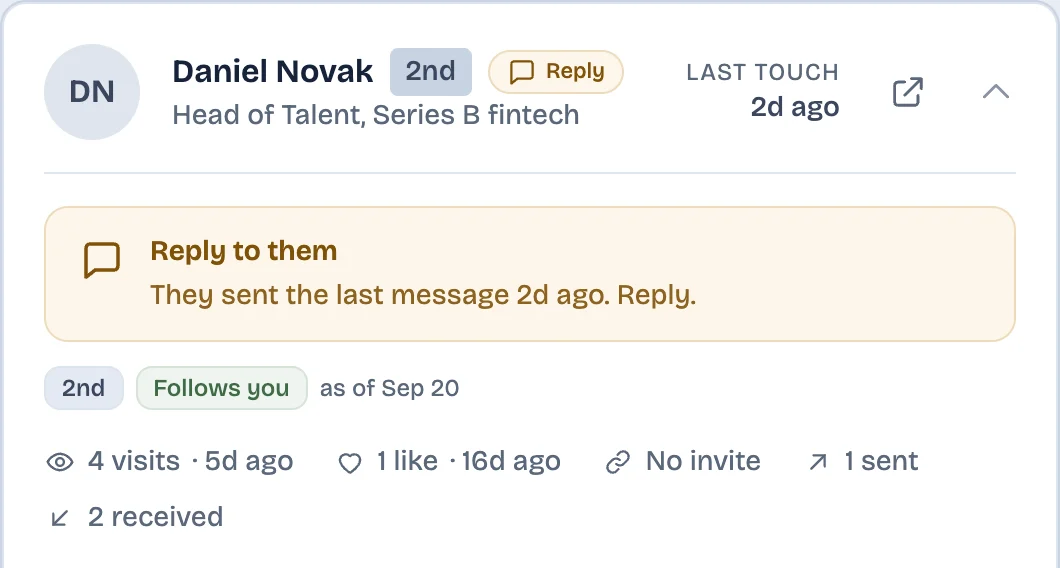
One option is to save the people you cannot afford to miss, a client or a recruiter, to the LinkedAsk watchlist. For saved people whose conversation you opened, it shows their last message with the date on their card and marks Reply to them when they wrote last.
The LinkedIn Other inbox: questions
Where did my LinkedIn messages go?
Most often to Other, the second half of Focused Inbox. Open Messaging and pick Other from the inbox category dropdown. If they are not there, check Archived and Spam in the same dropdown, your message requests, or search messages by the sender's name.
Why does LinkedIn send a connection's message to Other?
LinkedIn sorts by relevance with machine learning and does not say why a given message went to Other, so even a connection can end up there. A one-time cleanup when the feature started also moved older conversations to Other.
Can I move a message to Focused in the LinkedIn app?
LinkedIn Help documents the move only for desktop. If the app's More menu does not offer it, make the move on desktop.
Can you turn off Focused Inbox on LinkedIn?
Yes. On desktop go to Me > Settings & Privacy > Data Privacy > Messaging experience > Focused inbox and switch the toggle off. In the app, start from your profile photo and follow the same path. With it off, all messages stay in one list.
What is the difference between Focused and Other on LinkedIn?
Focused holds the conversations LinkedIn rates most relevant to you, and Other holds the rest. LinkedIn sorts them with machine learning and publishes no rules for which message goes where. New messages in both send notifications.
Where is the Other tab in the LinkedIn app?
In the LinkedIn app, tap the Messaging icon in the upper right, open the inbox category dropdown at the top and choose Other. If Other is not there at all, Focused Inbox is off for your account or not yet available to you, and all messages sit in one list.
Keep reading
- Guide · 5 minLinkedIn messages disappeared? Where they wentA vanished LinkedIn conversation has usually moved to Other, Archived or Spam. Check these places in order, see what is gone for good, and keep a copy.
- Guide · 4 minTrack LinkedIn follow-ups without a spreadsheetLinkedIn has no follow-up list. To track follow-ups, run a weekly pass with Mark as unread and Archive that sorts who you owe, who owes you and who went quiet.
- Guide · 3 minCan you unsend a LinkedIn message?LinkedIn has no unsend button, but you can delete a message for everyone within 60 minutes. What they still see, and what to do once the hour is up.
Keep the people you cannot miss in view.
LinkedAsk shows the last message and who wrote last for the people on your watchlist, from conversations you open on LinkedIn in Chrome.